01
Selling doesn’t stop
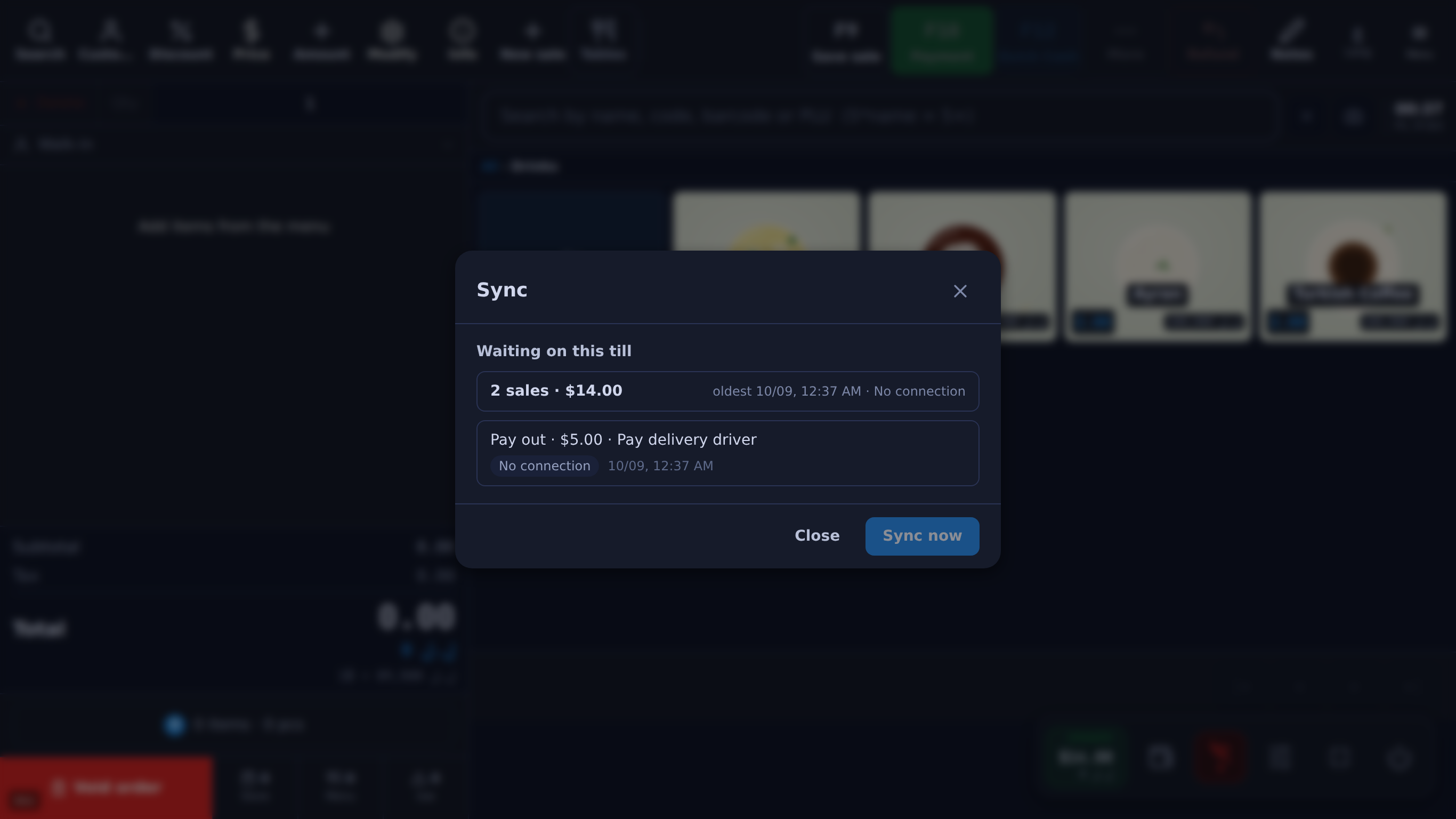
Sales are queued on the computer and sent automatically when the connection returns, keeping their original time, exchange rate and receipt reference, and each is recorded once.
When the line goes down mid-service, Table’s till keeps selling on its own copy: sales, refunds, tables and the cash drawer work offline, receipts and kitchen tickets still print, and it all syncs when the connection is back.
Made in Lebanon USD + LBP on every sale 14-day free trial, no card
The problem
A till that needs the internet stops when the connection does, at whatever hour it chooses. The customers in line don’t wait for it to come back.
When the system is down, sales go on a pad, and some of them never get typed in. The day’s total and the stock count are wrong from then on.
Sales written by hand don’t go through the drawer or come off the stock, so the shift closes short and nobody can say why.
What you get
01
Sales are queued on the computer and sent automatically when the connection returns, keeping their original time, exchange rate and receipt reference, and each is recorded once.
02
Offline sales print their receipt and kitchen tickets and open the cash drawer, using the printer settings the till saved while online.
03
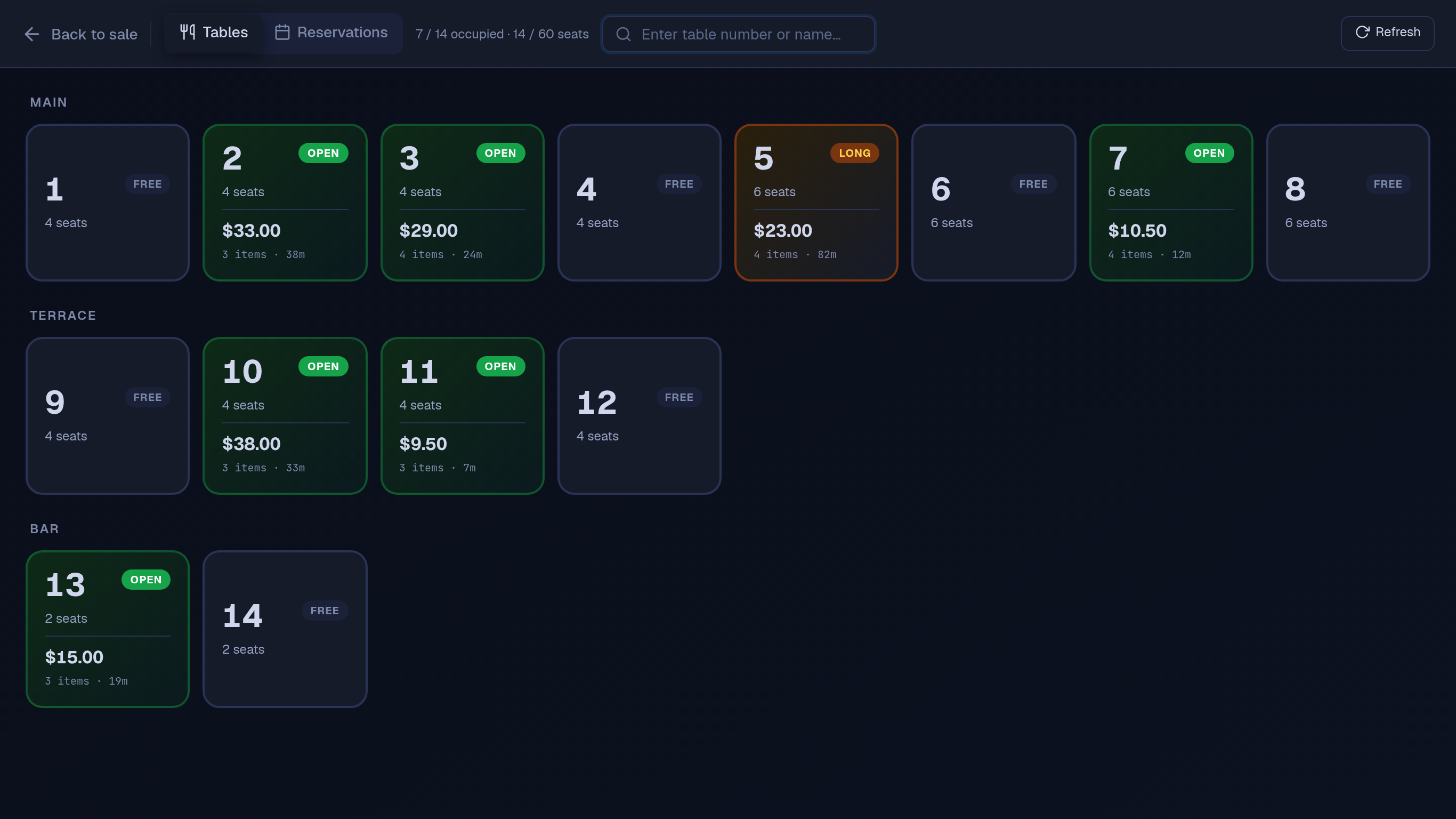
Open, park, move, merge and settle dine-in tables on the till’s own copy; parking a round prints its kitchen ticket. When the changes sync, items rung on the same table on another device are kept.
04
Refund a sale, split a payment with part left on the customer’s account, take a payment on an account (applied to the oldest debts first when it syncs) and apply coupons from the copy the till saved.
05
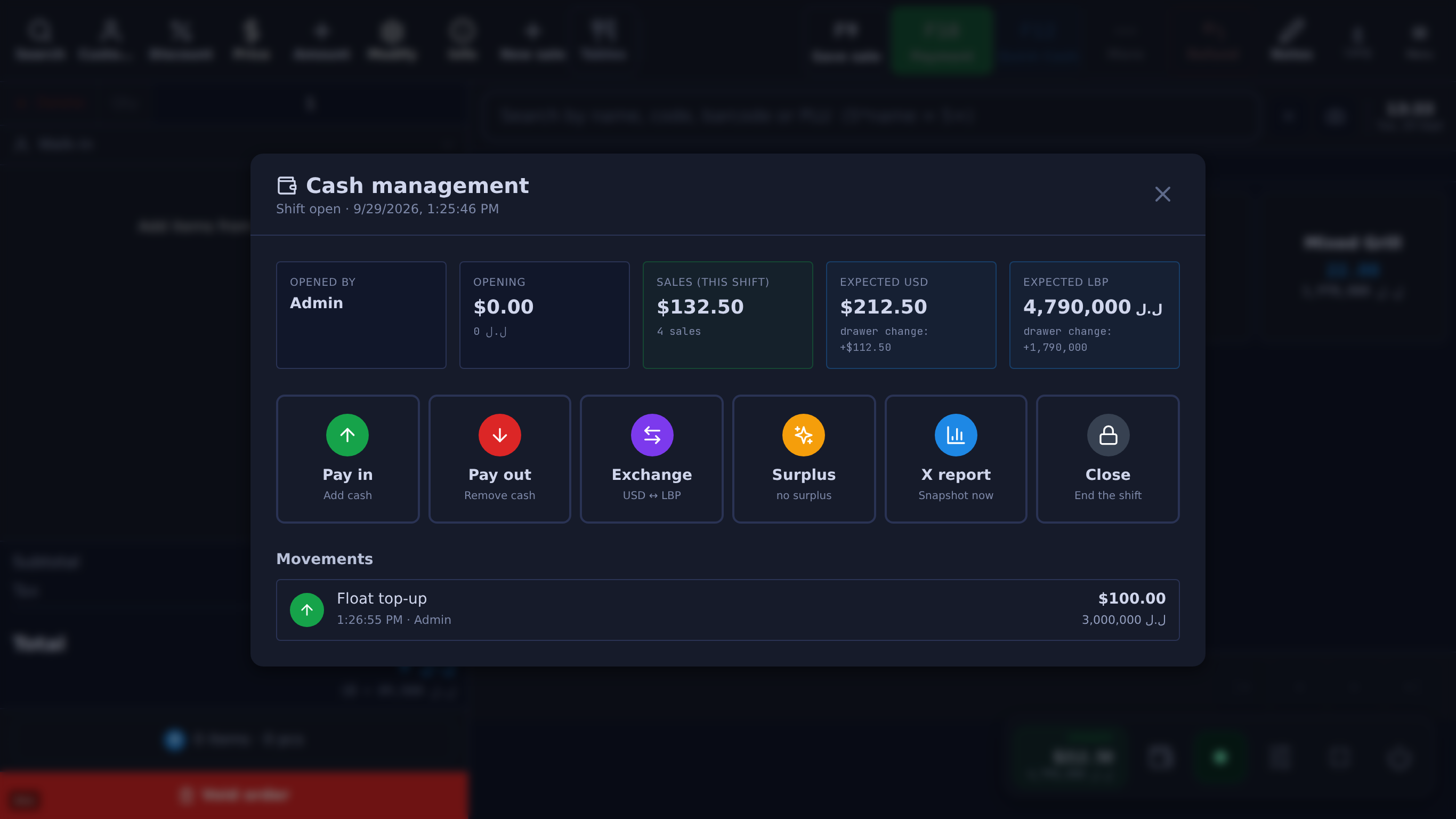
Open a shift, record pay-ins, pay-outs and currency exchanges, print an X report and close the shift offline. The drawer figures and the Z report printed offline are marked provisional until the close syncs.
06
A till restarted without internet keeps the menu at the prices it last had, the barcodes, variations, add-ons, settings, taxes, tables and the last 30 days of sales from its last online session.
07
The till checks its own connection to Table, so Wi-Fi with no internet behind it counts as offline and the till works on its own copy.
08
A change the server can’t apply when it syncs, such as a change to a table another device closed meanwhile, is shown to the cashier and kept under the sync button until someone marks it handled.
The real screens
Unedited captures of Table, taken in a fictional demo shop. Open one to see it full size.
Questions
No. Queued sales and changes are sent automatically when the connection returns, keeping their original time, exchange rate and receipt reference, and each sale is recorded once.
Yes. The till closes it on its own figures, the last totals it loaded plus what it did since, and the Z report printed offline is marked provisional. The server writes the final Z report when the close syncs, after the sales rung before it.
It opens with what it saved the last time it was online: the menu at the prices it last had, barcodes, settings, taxes, tables and the last 30 days of sales. Price, stock and exchange-rate changes made since reach it when the connection returns.
They keep the orders they take and send them when the connection returns. Until then those orders don’t print, so call them through to the kitchen.
Yes, to be set up: a till is set up online first. After that it sells without internet, while the reports, other tills’ figures and saving changes in Management and Settings wait for the connection.
What it costs
One Windows till with every feature not marked as an add-on on /features, the owner phone app, and support on WhatsApp.
Sign up yourself, or message us on WhatsApp and we’ll set it up with you.
14 days free · no credit card
What happens next
01
Your shop’s name and your mobile number. The shop and its PIN are created on the spot.
02
The till runs in the Table app for Windows. Download it
03
Click Download on the signup screen and the app picks up the 6-character pairing code shown when you sign up (valid 24 hours) when it opens on the same computer; anywhere else, enter the code. After 24 hours, message Table on WhatsApp for a new one.
Help installing? WhatsApp +961 81 664 397tableposlb@gmail.com