Skip to content
Table

Feature reference

Checked against the product on

Everything Table does, and what it doesn't.

Table is a point-of-sale system made in Lebanon for restaurants, cafés, bakeries, supermarkets and shops. It sells in US dollars and Lebanese lira at the same time, keeps selling when the internet drops, and runs in English and Arabic on a Windows till, with an owner phone app, waiter tablets, a customer QR menu and an online store.

Each feature says where it runs and how a shop gets it: always on, a setting, per product or a paid add-on. The screenshots are the real app running two made-up demo shops, Beit Aley and Zeitoun & Co. Made by TABLELB, and built, installed and supported in Lebanon. About Table

14 days free · no credit card · Read what it doesn't do first

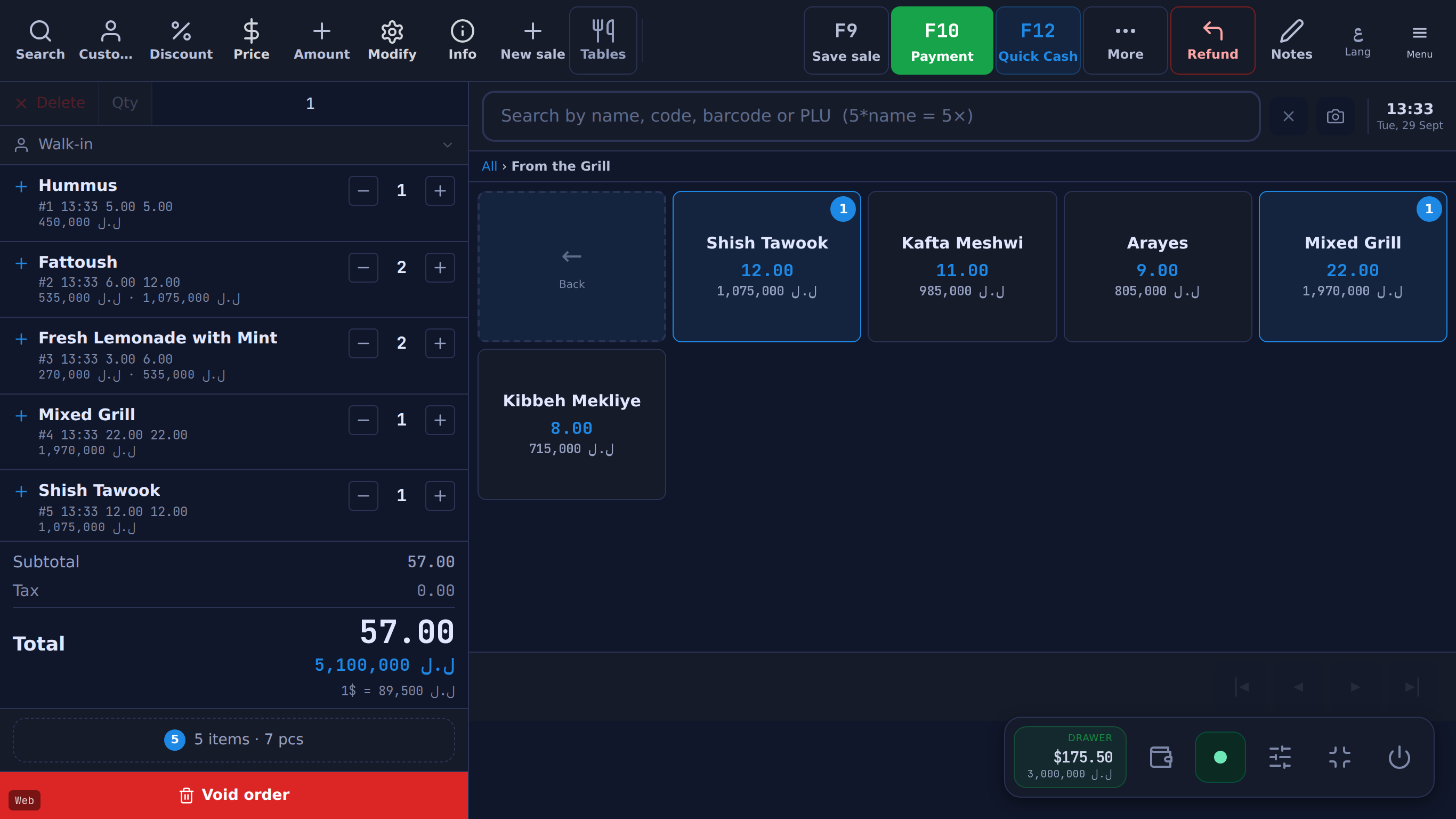
Table POS sale screen: a five-line order totalling $57.00 and 5,100,000 LBP, with the From the Grill menu showing prices in USD and LBP
(opens the full-size screenshot)
Table POS sale screen: a five-line order totalling $57.00 and 5,100,000 LBP, with the From the Grill menu showing prices in USD and LBP

The till: every line and total in dollars and lira, with the rate under the total.

features
137
areas
19
reports out of the box
57
free trial, no card
14 days
a month for the licence
$10
English and Arabic
EN + عربي

At a glance

What it is
Point-of-sale (POS) and back-office software for shops and restaurants in Lebanon.
Currency
US dollars and Lebanese lira side by side: prices, cash, change, receipts and reports. Daily rate from lirarate.org or set by hand; lira rounded to the 5,000 note. Dual currency
Offline
The till keeps selling without internet and sends the sales when the connection returns. Offline selling
Languages
Till, receipts and owner phone app in English and Arabic (right to left). The QR menu and online store also in French.
Devices
Till: Windows desktop app (Windows 7 to 11). Owner phone app: iPhone or Android. Waiter tablets: any tablet or phone browser. Standard receipt printers, cash drawers, barcode scanners and label scales. Download for Windows
Reports
57 reports on the till out of the box (61 with every module on) and 49 in the owner phone app. Every report
Price
POS licence $10 a month or $100 a year. 14-day free trial, no card. No transaction fees. Pricing
Your data
Full JSON backup and CSV exports while the licence is active (after that, ask Table for a copy), and a nightly off-site copy. Backups and data
On this page

01 / 19 · 12 features

Selling at the till

#

How a cashier finds and rings up products on the Windows till.

12 features in this areaShow details

One search box for barcode, code, PLU or name

Included

The search box matches, in order: an exact product barcode, a pack barcode, the product code (SKU), a PLU code, then a product name in English, Arabic or French. Enter adds the match to the cart; an unknown code shows a 'not recognized' message.

Till · Always on

Quantity entry

Included

Typing '5*code' or '5x code' adds 5 units in one step (up to 999). A product can instead open a number pad when tapped (decimals allowed, for weight or half portions) or ring a preset quantity such as 0.5.

Till · Always on; number pad and default quantity are set per product

Barcode scanners and camera scanning

Included

A USB or Bluetooth scanner that types like a keyboard scans straight into the search box, which keeps focus between taps. A camera button scans a barcode with the computer's webcam, with manual entry if there is no camera. A full-screen lookup with separate name and code fields is also available.

Till · Always on

Weighing-scale barcode labels

Setting

The till reads the EAN-13 label printed by a label-printing scale (prefix, PLU code, then weight or total price) and rings the product with the weight as the quantity, so stock goes down by the weight sold. Prefix, code digits, decimals and weight-versus-price are set per till.

Till · Setting per till (off by default)

Categories and sub-categories

Included

Category tiles open into their sub-categories with a breadcrumb back up. The grid is 3 to 10 columns and rows, products can have a tile colour, and products and groups can be re-ordered by drag and drop.

Till · Always on

Variations (sizes, colours, options)

Per product

A product can have a flat list of variations, each with its own price difference, cost, stock count and low-stock threshold, or up to 3 option axes (for example Size and Colour) with a price difference per value. Tapping the product opens the picker.

Till · Per product

Sell by piece or by pack

Per product

A product can have a pack size, a pack price and a separate pack barcode: scanning the pack barcode rings one pack, scanning the piece barcode rings one piece. Stock is received by the pack or the piece and always counted in pieces.

Till · Per product

Price tiers (wholesale and other levels)

Per product

Each product can have any number of extra price levels besides its base price. The cashier picks the level for the whole cart or one line, and a customer with an assigned level gets it automatically when attached to the sale.

Till · Per product and per customer

Add-ons, preset comments and notes

Per product

Pressing Modify on a cart line offers the product's paid add-ons (each can deduct an ingredient from stock), preset comment chips such as 'no onion', and a free-text note. Comments and notes print on kitchen tickets, not on the customer receipt.

Till · Per product

Park and restore sales

Included

F9 parks the current cart. The parked list shows each sale with its customer, time and total in dollars and lira, and one tap restores it.

Till · Always on

Quotations

Included

A4 price quotes in English or Arabic with a validity date and a status (draft, sent, accepted, declined). A quote can be sent to the customer as a WhatsApp link and turned into a sale.

Till, Phone app · Always on

Keyboard shortcuts

Included

13 shortcuts, listed in Settings → Shortcuts, including F9 park, F10 cash screen, F12 exact cash, Ctrl+D open drawer, Ctrl+B cash management, Ctrl+H sales history, Ctrl+K pick customer and Ctrl+Shift+R refund.

Till · Always on (actions still check access levels)

02 / 19 · 6 features

Discounts, promotions and tax

#

Manual discounts and price overrides, rule-based promotions, customer and staff discounts, and configurable taxes.

6 features in this areaShow details

Manual discounts

Included

The cashier discounts the whole cart or one line, as a percentage, a dollar amount or a lira amount. The screen warns when a discount takes the sale below cost.

Till · Always on; can be limited by access level

Price override for one sale

Included

A line's price can be changed for the current sale only, without changing the product's saved price. The same screen can work out the quantity for a target amount ('give me $X of this').

Till · Access level 5 by default

Promotions

Included

Three rule types: percent or dollar off everything or one category (with an optional minimum cart and start and end dates), quantity breaks on one product, and combos of specific products. When a cart qualifies, the till shows the promotion with the largest discount and the cashier taps Apply.

Till · Set up in Management → Promotions

VIP customer levels

Included

Named customer tiers, each with a percentage discount on everything, chosen categories or chosen products, applied automatically when that customer is attached to the sale. A level can also carry a default credit limit and payment term.

Till · Assigned per customer

Staff discounts

Included

An employee can have a personal discount (percent or fixed, on everything, categories or items) with optional limits per week, month or custom period, by amount or number of uses.

Till · Set per employee

Taxes and VAT

Included

Any number of taxes, as a percentage or a fixed amount, applied automatically or chosen per sale, with per-product overrides. Settings choose whether prices include tax and whether discounts come off before or after tax. Each tax prints on its own receipt line and the Tax collected report totals it net of refunds.

Till · No tax until one is configured

Known limits in this area:Payments and checkout (8)

03 / 19 · 8 features

Dual currency (USD + LBP) and payments

#

Prices, change and cash in US dollars and Lebanese lira at the same time, with the rate stored on every sale.

Dollars and lira

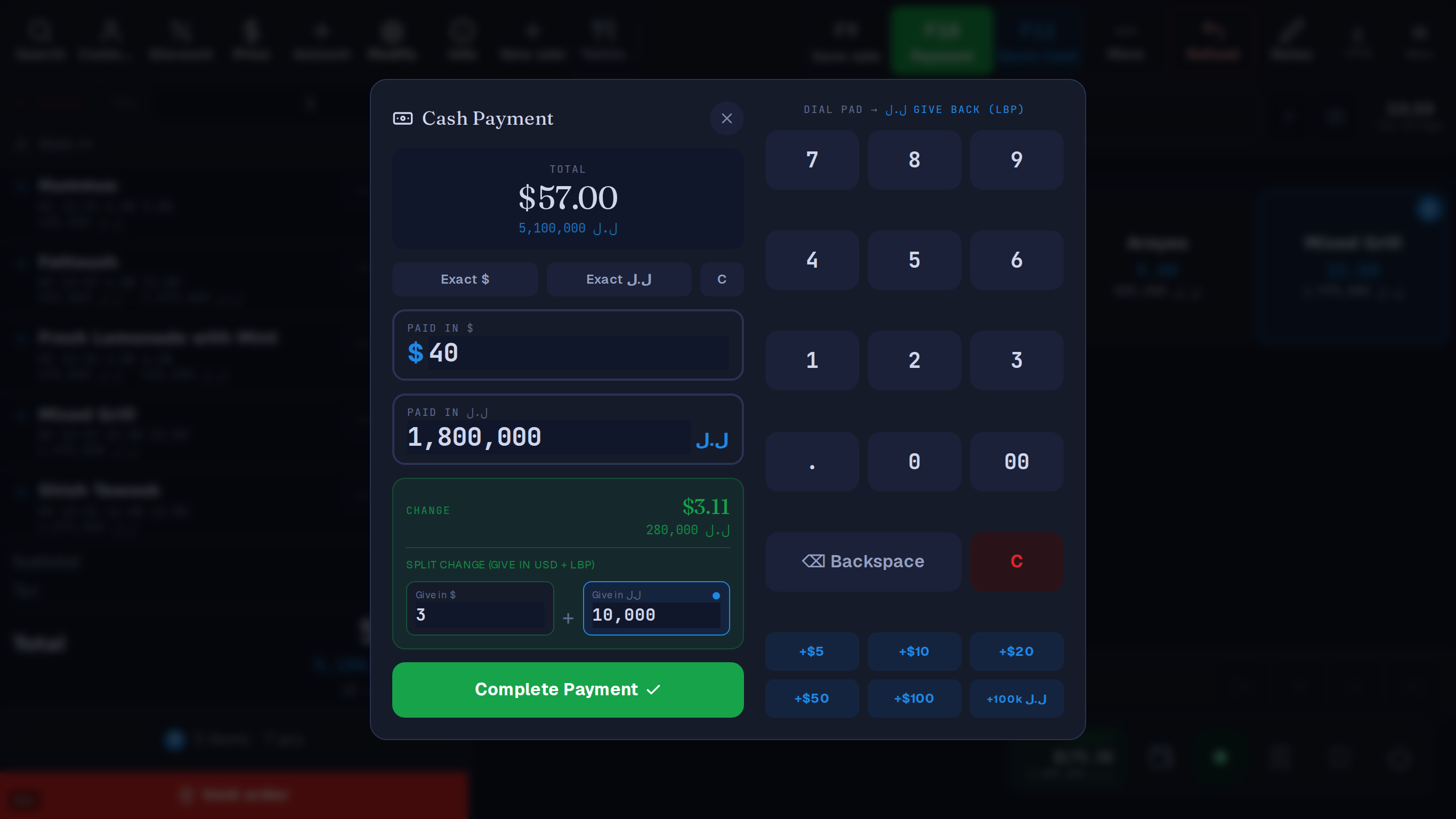
Cash payment for a $57.00 bill: $40 plus 1,800,000 LBP tendered, change of $3.11 or 280,000 LBP given back as $3 plus 10,000 LBP
(opens the full-size screenshot)
Cash payment for a $57.00 bill: $40 plus 1,800,000 LBP tendered, change of $3.11 or 280,000 LBP given back as $3 plus 10,000 LBP
Paid in both currencies at once; the cashier splits the change between dollars and lira.

A $ bill. They hand you $ and ل.ل.

For example, give $3 — the till fills in 10,000 ل.ل

or 280,000 ل.ل all in lira

The cashier picks how many dollars to give back; the till works out the lira.

Lira price 5,100,000 ل.ل

Example rate: 89,500 ل.ل per $1. Your till uses the day's rate from lirarate.org or one you set. How dual currency works

8 features in this areaShow details

Exchange rate: automatic or manual

Included

Shops on the automatic rate are updated once a day from lirarate.org. The owner can type a rate instead (1,000 to 500,000 LBP per dollar), which keeps that shop on the manual rate until it is set back to automatic.

Till, Phone app · Always on; a manual rate needs the admin PIN

Lira rounding to the 5,000 note

Included

Lira amounts shown to the customer are rounded to the nearest 5,000 LBP while dollar amounts stay exact to the cent. Handing over exactly the lira amount shown settles the sale with no change and no shortfall.

Everywhere · Always on

Cash in dollars and lira together

Included

The cash screen takes a dollar amount and a lira amount at once, with 'exact' buttons for each currency and quick-add buttons. When change is due, the cashier chooses how much to give back in dollars and how much in lira.

Till · Always on

Lira-first shops

Setting

A shop-wide setting makes lira the large figure on the cart total, the drawer badge and the receipt, with dollars underneath. A product can also carry a fixed lira price, in which case its dollar value follows the rate and the till and online store add it up in lira: eight items at 5,000 LBP come to 40,000. Lira amounts are shown rounded to the nearest 5,000.

Till · Setting (dollars first by default); lira price set per product

Small overpayments and typing mistakes

Included

An overpayment under $0.50 or 50,000 LBP with no change entered is recorded as drawer surplus. A tender more than $5 over and more than double the total asks the cashier to confirm, which catches lira typed into the dollar field.

Till · Always on

Payment methods

Included

Cash, card, Whish, OMT and Neo. Non-cash methods record how the customer paid; the till does not connect to a card terminal or to the wallets.

Till · Cash always on; others switched on in Management → Payment types

Split payments

Included

One sale can be paid with several methods (for example part cash, part Whish), including an unpaid part that goes on the customer's account. The receipt lists each part.

Till · Always on

Rate stored with each sale

Included

The exchange rate in use is stored with every sale, including sales rung offline and synced later, and the receipt prints it (1$ = … ل.ل). Sales are kept in dollars, so past dollar totals stay correct when the lira moves. The till's sales history, sale documents and reprinted receipts show each sale's lira at its stored rate, and the till's Management dashboard and the Sales overview, Net profit and X and Z reports (on the till and in the owner phone app) convert past sales' lira the same way.

Till · Always on

Known limits in this area:Payments and checkout (8)

04 / 19 · 7 features

Receipts, kitchen printing, voids and refunds

#

What happens around a sale: printing receipts and kitchen tickets, opening the drawer, cancelling and refunding.

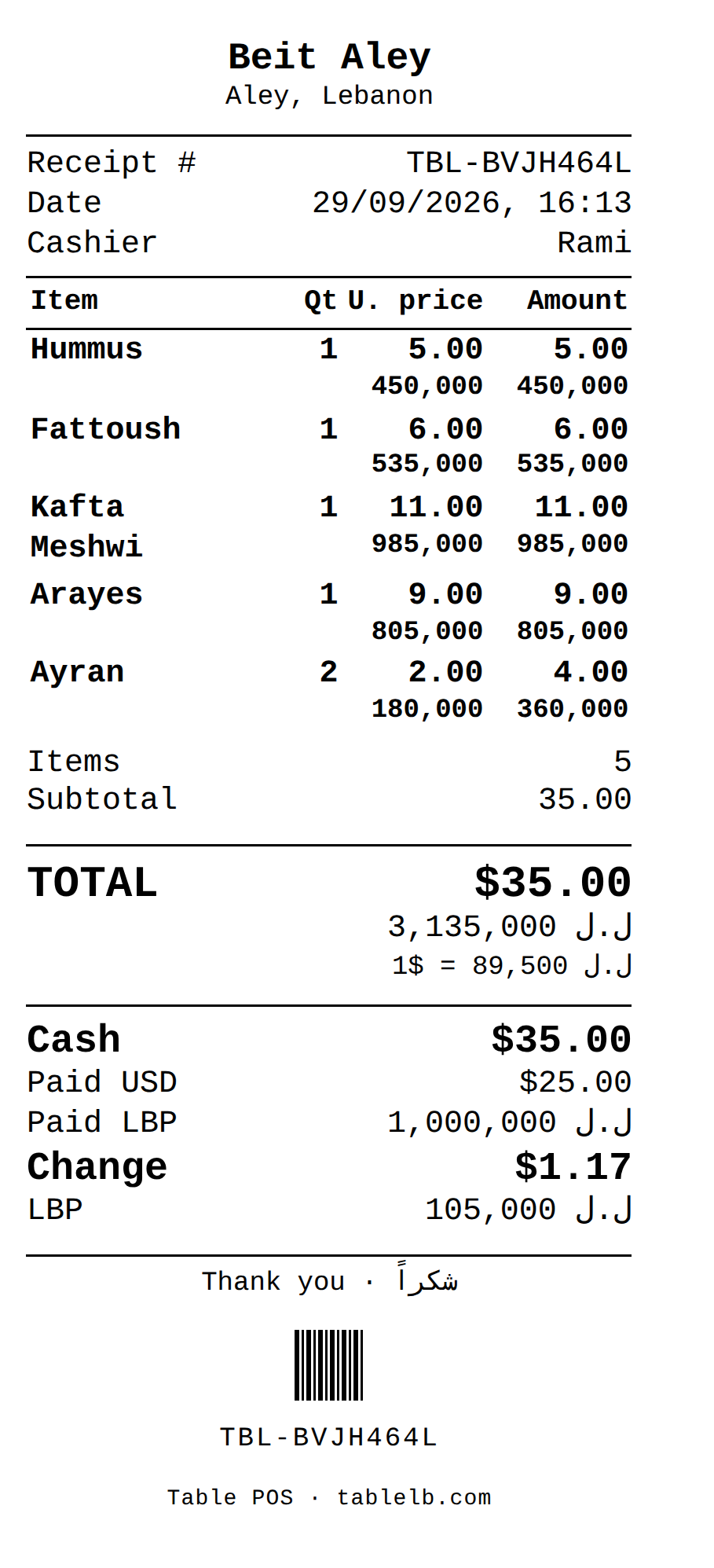
80 mm receipt from Beit Aley for $35.00 (3,135,000 LBP), paid $25 plus 1,000,000 LBP, with 105,000 LBP change and the exchange rate printed
(opens the full-size screenshot)
80 mm receipt from Beit Aley for $35.00 (3,135,000 LBP), paid $25 plus 1,000,000 LBP, with 105,000 LBP change and the exchange rate printed
An 80 mm receipt from the till's receipt template.
7 features in this areaShow details

Receipts

Included

58 mm or 80 mm thermal paper or an A4 invoice, in English or Arabic (following the cashier's screen language), with totals in dollars and lira, the rate, tax lines and change. Logo, header, footer, barcode, cashier name, customer details and VAT number can each be switched on or off, and a QR code of the shop's website can print at the bottom (My Company).

Till · Settings → Print

When and where receipts print

Included

After each sale the till prints automatically, asks first, or never prints. A shop can set up several receipt printers and pick one per sale, and past sales can be reprinted from sales history.

Till · Settings → Print

Kitchen and bar tickets by station

Setting

Print stations send the items of chosen categories to their own printer (for example drinks to the bar), each with its own paper width and copy count, and a general kitchen printer takes everything else. Tickets list add-ons, comments, the order note and the waiter's name, and later rounds on the same table print only what was added.

Till · Settings → Print (off by default)

Cash drawer

Included

On cash sales the till opens a drawer connected to a thermal receipt printer with an editable ESC/POS command. Ctrl+D or the drawer button opens it without a sale.

Till · On by default; opening without a sale needs access level 5

Printers through Windows

Included

Receipts, kitchen tickets and A4 documents print silently to any printer installed in Windows, chosen by name in Settings. The cash drawer needs a thermal (ESC/POS) receipt printer.

Till · Always on

Voiding a cart

Included

Voiding the current cart is logged with the cashier's name and, when required, a reason picked from a list or typed. It appears in the owner's notifications.

Till · Reason optional unless 'Require void reason' is on

Refunds

Included

The cashier finds the original sale, ticks the lines that came back, enters the money returned in dollars and/or lira, chooses whether the items go back into stock, and picks a reason. Refunds are allowed up to 30 days after the sale and take back the matching share of tax.

Till · Access level 5 by default

05 / 19 · 6 features

Cash shifts, several tills and offline selling

#

Registers and shifts, what works without internet, and customer-facing screens.

Offline POSMulti-branch

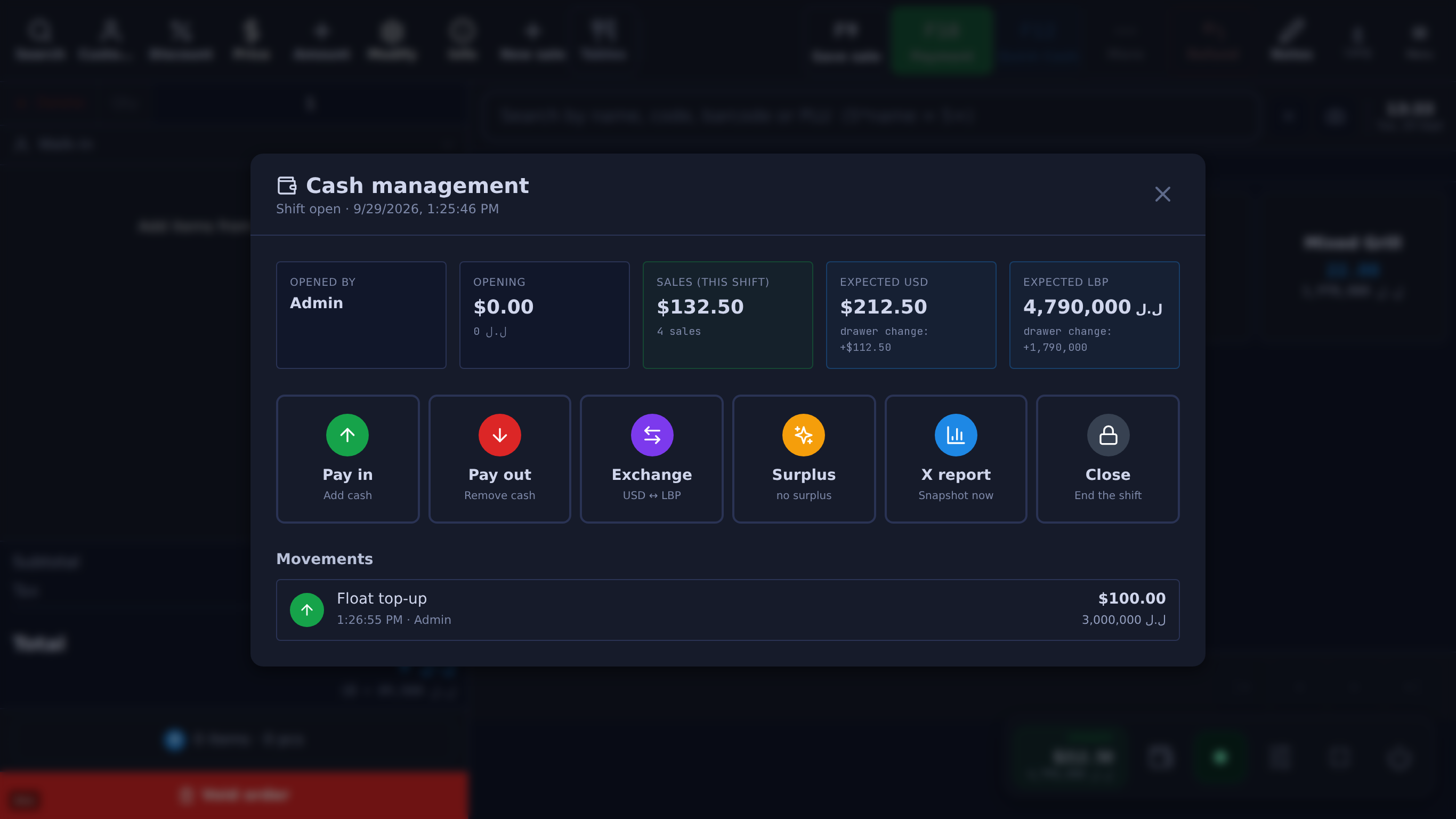
Cash management for an open shift: $132.50 in sales, expected drawer of $212.50 and 4,790,000 LBP, with Pay in, Pay out, Exchange, Surplus, X report and Close
(opens the full-size screenshot)
Cash management for an open shift: $132.50 in sales, expected drawer of $212.50 and 4,790,000 LBP, with Pay in, Pay out, Exchange, Surplus, X report and Close
Cash management: expected cash per currency, pay-ins, pay-outs, exchange and the X report.
6 features in this areaShow details

Cash shifts, pay-ins, pay-outs, X and Z reports

Included

Each shift opens with a dollar float and a lira float, records pay-ins, pay-outs and dollar↔lira exchanges made from the drawer, and closes with the counted dollars and lira. The Z-report shows expected versus counted cash per currency; an X-report shows the running figures mid-shift.

Till, Phone app · Always on; cash management needs access level 5

Several tills in one shop

Add-on $10/mo each

Each computer picks its register in Settings → Registers, and each register has its own drawer balance, shift and Z-report. All tills sell from the same product list and stock.

Till · Add-on: Extra POS terminal, $10/month or $100/year each

Selling offline

Included

Without internet the till keeps selling: sales are queued on the computer and sent automatically when the connection returns (the till checks its own connection to Table, so Wi-Fi with no internet counts as offline), keeping their original time, exchange rate and receipt reference, and each is recorded once. Offline sales print their receipt and kitchen tickets and open the cash drawer. Cashiers can also sign in, void carts, add customers, apply coupons, ring deliveries (they reach the delivery board when the sale syncs), open, park (printing the kitchen ticket), move, merge and settle dine-in tables, refund a sale, split a payment with part left on the customer's account, take a payment on a customer's account (applied to the oldest debts first when it syncs), clock staff in and out, open a shift, record pay-ins, pay-outs and currency exchanges, print an X report and close the shift offline; the drawer figures and the Z report printed offline are marked provisional until the close syncs. A till restarted without internet keeps the menu at the prices it last had, the barcodes, product codes, variations, add-ons, price tiers, packs, settings, taxes, loyalty rules, tables, stock locations, ingredient stock and the last 30 days of sales from its last online session, and its stock warnings count the sales it has not synced yet.

Till · Always on (the till must be set up online first)
Customer-facing display

Setting

A second screen shows the cart, totals in dollars and lira, the customer's name and points, and a thank-you screen with the change due, plus the shop logo, a greeting, an optional review QR code, an optional Whish payment QR code in the top-right corner (from a payment link, or an uploaded picture of the QR for a screen on the same computer) and rotating images. The Windows app (standard Windows 10/11 build) places it full-screen on a chosen second monitor and reopens it there when the till starts or the monitor is plugged back in, unless that is switched off. A screen on another computer or tablet is paired once with the shop PIN.

Till · Setting per device

Pole display

Setting

A customer pole display (VFD) shows items, totals and the change after payment. 12 command sets, including 8-digit LED number displays with Price, Total, Collect and Change lamps, connected through a COM port, a Windows printer port or the network.

Till · Setting per device (off by default; standard Windows 10/11 build)

English and Arabic screens

Included

The till runs in English or Arabic (right to left). Each cashier's choice is remembered, so two cashiers on one till can use different languages. An on-screen keyboard with English and Arabic layouts can be turned on for touch screens.

Till · Always on; on-screen keyboard is a setting

06 / 19 · 5 features

Products, pricing tools and shelf labels

#

One catalogue for the till, the owner phone app, the QR menu and the online store.

5 features in this areaShow details

Three product kinds

Included

Each product is a stock item (counted), a recipe item (cost and stock come from ingredients) or a service (no stock count).

Till, Phone app · Recipe kind needs the Recipes setting

Barcodes, PLU, code and shelf location

Included

A product can carry several barcodes, a PLU code for scale labels, an internal code (SKU) and a shelf or aisle label. Cost is stored in USD and in LBP.

Till, Phone app · Always on

Catalogue import and export (CSV, XML)

Included

Products export to CSV or XML with 35 columns (both currencies, cost, barcodes, stock, variations, add-ons, recipe lines, price levels, supplier). Import previews before writing, matches rows by id, code, barcode or name, blocks duplicates in the file, creates nested groups such as Drinks/Hot/Espresso, and has a column-mapping step.

Till · Always on

Bulk price change with history

Included

Change prices for all products or one group by a percentage, a fixed amount or a set price, with rounding and a preview. Every run is logged with who ran it, when, the formula, the scope and up to 200 before/after rows.

Till · Always on

Shelf price tags

Setting

Labels show name, barcode, code and price in USD, LBP or both (the shop name and the numbers under the barcode can each be turned off), on thermal labels (30×20, 40×30, 50×30, 60×40, 100×80 mm, continuous or custom) or A4 sheets of 30; on labels 25 mm tall or less, or 32 mm wide or less, the layout is sized to the label: one-line names, bars sized to whole dots of a 203 dpi label printer where the code fits, and the barcode number in small type. A print queue fills from stock receipts for products marked for tags, or for every product with one "Include all products" switch.

Till · Setting (off by default)

Known limits in this area:Stock and products (9)

07 / 19 · 12 features

Stock, inventory and recipes

#

Stock per product and variation with a full movement log, receiving, stocktakes, waste, storehouses, and ingredient recipes.

Inventory management

12 features in this areaShow details

Stock per product and per variation

Included

Sales reduce the count of stock items and of each variation separately; restocked refunds and deleted sales put it back. The Stock screen filters negative, low and zero items, shows cost and sale value in USD and LBP, and exports an .xlsx file.

Till, Phone app · Always on

Stock movement log

Included

Every change is recorded as a sale, purchase, waste, adjustment or count, with the quantity before and after, the reason, the user and the time.

Till, Phone app · Always on

Stocktake

Included

A count sets the quantity on the shelf and records the difference, item by item or in bulk from a CSV with a Quantity column.

Till · Always on

Waste

Included

Write-offs with preset reasons (Spoiled, Damaged, Expired, Broken) for products, and a separate waste action for ingredients. The Waste report lists them.

Till, Phone app · Always on

Negative-stock warning

Setting

When on, the till warns when ringing up an item or raising a line's quantity would take it beyond the quantity on hand, and the cashier can cancel or choose Proceed anyway. The server refuses a sale that would take a tracked product below zero unless Proceed anyway was chosen for that item in the sale, and only up to the quantity the cashier confirmed. When off, stock may go negative and is flagged on the Stock screen.

Till · Setting (off by default)

Receiving stock from suppliers

Included

A receipt takes a supplier and several lines with quantity by piece or pack, cost in USD or LBP, and an expiry date where tracked. Payment is from the cash drawer, from outside it, or on supplier credit (which creates a payable), and can be split.

Till, Phone app · Always on

Costing method

Setting

By default a purchase with a cost replaces the product's cost; with moving-average cost on, it becomes the weighted average of receipts. Each sold line keeps its unit cost at the time of sale, and profit reports use that stored cost.

Till · Moving-average cost is a setting (off by default)

Expiry dates

Per product

Products and ingredients marked 'tracks expiry' ask for an expiry date on each receipt line. The 'Expiring this month' report lists receipts due within 31 days or up to 7 days overdue.

Till, Phone app · Per product

Low-stock alerts and reorder list

Per product

Products, variations and ingredients have a low-stock threshold. Crossing it adds a notification in the owner phone app (and a push notification when allowed), and the Reorder list and Low stock list reports show what to buy.

Till, Phone app · Threshold per item

Several storehouses and transfers

Setting

Locations of type shop, warehouse, kitchen, vehicle or other keep separate balances for products and ingredients, with receiving, counts, adjustments and transfers between them. Each till chooses which location its sales deduct from.

Till · Setting (off by default)

Recipes and ingredient storehouse

Setting

Ingredients have a purchase unit and a recipe unit with a conversion (for example 1 L = 1000 g) and a weighted-average cost. Recipes on products, variations and add-ons deduct ingredients on every till sale, and recipe cost is quantity times ingredient cost.

Till, Phone app · Setting: Recipes + Storehouse (off by default)

Prep items, yield and cost-only lines

Setting

A prep item such as dough is made from other ingredients: 'Make batch' uses the components and adds the prep item to stock at the batch cost. Ingredients can carry a yield percentage (shown in the Yield & trim loss report), and cost-only lines such as gas add to recipe cost without being stocked.

Till · Setting: Recipes + Storehouse

Known limits in this area:Stock and products (9)

08 / 19 · 4 features

Suppliers, payables and expenses

#

Supplier records, money owed to suppliers, and an expense ledger with recurring bills, in USD and LBP.

4 features in this areaShow details

Suppliers

Included

Name, contact person, phone, email, address, tax number, payment terms and notes, linked to the products they supply. The Purchases by supplier report totals what was bought from each.

Till · Always on

Supplier payables

Included

Stock received on supplier credit becomes a payable in USD and LBP with an optional due date, paid in instalments from the drawer or from outside it. The Payables report shows what is still owed.

Till, Phone app · Always on

Expenses

Included

Each expense has a category, a description and an amount in USD and LBP, and is paid from the drawer, from outside it, or left on supplier credit. Expenses feed the Expenses and Net profit reports.

Till, Phone app · On by default

Recurring expenses

Included

Templates repeat weekly, monthly, yearly or every N days, with a start date, an optional end date and a pause switch.

Till · On by default

09 / 19 · 8 features

Customers, credit accounts (daftar) and loyalty

#

Customer profiles, sales on account with limits and aging, store credit, loyalty points and coupons.

8 features in this areaShow details

Customer profiles

Included

Name, phone, email, address, notes, birthdate, company, tax number, VIP level and price level, plus total spent, visit count and loyalty points. Contacts import from CSV (duplicates by phone, email or name are skipped) and export to CSV.

Till, Phone app · Always on

Sales on account

Included

A sale can go on a named customer's account and each unpaid document keeps its own balance. The server checks the customer's credit limit, payment term and blocked status; going over needs a user at the credit-override level (5 by default), which is noted on the sale. The receipt shows the previous and new balance.

Till · Always on; limits apply once the owner sets one

Collecting payments and write-offs

Included

Credit payments are taken in USD and LBP, applied oldest-first or to documents the cashier picks, and any overpayment becomes store credit. Part of a debt can be written off without cash entering the drawer, and a recorded payment can be voided.

Till · Always on

Receivables and aging

Included

Who owes what, split into current, 1–30, 31–60, 61–90 and 90+ days, with limit use and days late, exportable to CSV. A daily check flags overdue and near-limit customers and birthdays in the owner's notifications, and the owner phone app can open a pre-filled WhatsApp reminder for the owner to send.

Till, Phone app · Always on

Store credit

Included

A customer can hold a credit balance from overpayments, refunds to credit or owner top-ups. The Store-credit liability report totals what the shop owes customers.

Till · Always on

Loyalty points

Setting

Customers earn points per $1 on paid sales; the owner sets the rate, the points needed for a reward and the reward's dollar value. Rewards are redeemed at the till as a discount, refunds take points back, and the Loyalty liability report values outstanding points.

Till · Setting (off by default)

Coupons

Included

Codes with 1–90% off the whole order, optional total and per-customer caps and an optional expiry date, up to 30 per shop, created and edited on the till (Management → Promotions) or in the phone app. Customers enter them at QR-menu checkout and cashiers in the till's discount window; every use is checked and counted on the server, and a coupon limited per customer needs the customer on the sale. The Coupon performance report shows their use.

Till, Web, Phone app · Always on at the till; in the phone app and on the QR menu with the QR menu add-on

Known limits in this area:Payments and checkout (8)

10 / 19 · 12 features

Staff, access control and records

#

Staff PINs with access levels, manager override, time clock and payroll, a documents archive, trash bin and logs.

12 features in this areaShow details

Staff users and access levels

Included

Each user has a PIN, an access level from 1 to 9, a role, a wage and a weekly schedule. Settings list 22 actions with a minimum level each; out of the box refunds, price changes, document edits, cash management, opening the drawer, currency exchange and credit override need level 5.

Till, Phone app · Always on

Manager override

Included

When a cashier's level is too low, the till asks for the PIN of a user who has it instead of refusing, and that approval is passed to the server for that one action, or for as long as the approved Management, Settings, Reports or Sales history screen stays open. Without internet, the till checks the PIN itself for actions it carries out (a discount, a price change, a void, opening the drawer, a refund or a drawer entry); a sale approved that way is recorded when it syncs and the owner is notified, and a refund or drawer entry waits until someone with the level is signed in.

Till · Always on

Server-checked permissions

Included

The server re-checks the user's level through a signed staff session for discounts and price reductions, refunds, voids, document edits, cash-management actions, currency exchanges and phone-shop actions. For what the Management, Settings, Reports and Sales history screens load and save, the till sends the signed-in user's session and the server refuses a level that is too low, except for data the sale screen also uses.

Till · Always on

Admin-only actions

Included

Deleting a sale, creating or promoting level 8–9 users, restoring a backup, resetting data and changing payment settings need a level-9 user or the admin password.

Till · Always on

PIN protection

Included

The main admin PIN is kept on our servers as a one-way hash; an older shop’s starting PIN stays in readable form until it is first used. Staff PINs are moving to one-way hashes in two stages. Until we switch on the second stage, a staff PIN that is set or changed is still stored in readable form beside its hashes, so an older version of Table keeps working. From the second stage, a new staff PIN is kept only as hashes, and an older staff record keeps its readable PIN until the owner’s till next loads the staff list or that PIN is next used. A passkey record (from biometric sign-in) made before we stopped copying PINs into them holds a copy of the PIN until someone next signs in to the shop with its main PIN or a passkey. For offline sign-in, each staff record on our servers also holds a second, faster hash of the staff PIN, and tills and waiter tablets keep copies of it; someone who copies one could work out the PIN by trying every possible PIN. Repeated wrong PINs slow down further attempts, and a new shop must replace the default PIN at its first sign-in.

Everywhere · Always on

Time clock

Included

Cashiers are clocked in when they log in, and staff with the worker role get a Start/Done card instead of the till. Entries record hours, the wage at clock-in, the scheduled shift and overtime or off-shift flags; excused days can be paid or unpaid. Without internet, clock-ins and clock-outs are kept on the till with their time and sent when the connection returns.

Till · On by default

Payroll calculation

Included

Wages owed per employee for a period, from hourly or daily rates and paid excused days, shown in the Payroll, Attendance / timesheet and Labor cost % reports. Net profit subtracts these wages.

Till, Phone app · On by default

Documents (sales history)

Included

Sales, refunds, stock receipts, expenses and voids, filtered by product, customer, number, user, type, register, paid status and period. A sale can be opened, edited, reprinted, printed on A4 or saved as PDF.

Till, Phone app · Saving an edit needs access level 5

Deleting a sale

Included

Permanently removes a sale and reverses its stock, ingredient use and drawer amount. It is refused once the sale has been refunded, and the owner is notified.

Till · Needs the admin password

Trash bin

Included

Archived products, customers and suppliers go to the Trash with who archived them and when, and stay there until restored or purged; nothing is deleted automatically. A purge is refused while something is still open: for a customer, unpaid credit, store credit, a session package with sessions or balance left, a car rental awaiting payment or still holding a deposit, or an unpaid phone-shop transfer; for a supplier, an unsettled payable; for a product, an open table tab, an online-store order not yet delivered or rejected, an unsettled payable for its stock, an open farm lot or an unpaid phone-shop transfer. Past sales and purchases do not block a purge.

Till · Always on

What is logged

Included

An activity log records shift open and close, day close and each opening of cash management; stock movements, bulk price runs, voids and discounts carry the user's name. The owner's notification feed records voids, refunds, deleted sales, voided credit payments, credit overrides, low stock and shifts.

Till, Phone app · Always on

Web protections

Included

The site sends HSTS, click-jacking protection and a content security policy. Menu, store and chalet orders are re-priced on the server, and signup, pairing, store checkout and the assistant are rate-limited.

Everywhere · Always on

11 / 19 · 4 features

Backups and your data

#

Your data stays exportable: full backups, CSV exports and a nightly off-site copy.

4 features in this areaShow details

Manual backup and restore

Included

Settings → Database downloads a JSON file with the shop record, settings, customers, all sales, categories, products and tables, with staff PINs removed. Restore replaces the shop's POS data from a backup of the same shop.

Till · Restore needs the admin password

Exports

Included

Products export to CSV or XML, customers to CSV, stock to .xlsx, and every report to CSV or a printable A4 page (save as PDF from the print dialog).

Till, Phone app · Always on

Nightly off-site backup

Included

Every night at 03:00 UTC each shop's backup is saved to private cloud storage, keeping the last 30 dated copies. Like the download, it leaves out PINs and passkey records. Restoring from one goes through Table.

Everywhere · Always on

Reset and diagnostics

Included

Reset wipes chosen areas (sales, products, customers, stock, expenses and so on) after the admin password and a typed confirmation, downloading a backup first. Settings → Diagnostics checks the shop's data, runs a test sale and shows recent errors.

Till · Reset needs the admin password

12 / 19 · 10 features

Tables, waiter tablets and reservations

#

Optional dine-in mode: open tabs per table, a browser-based waiter tablet, reservations and chalet self-ordering.

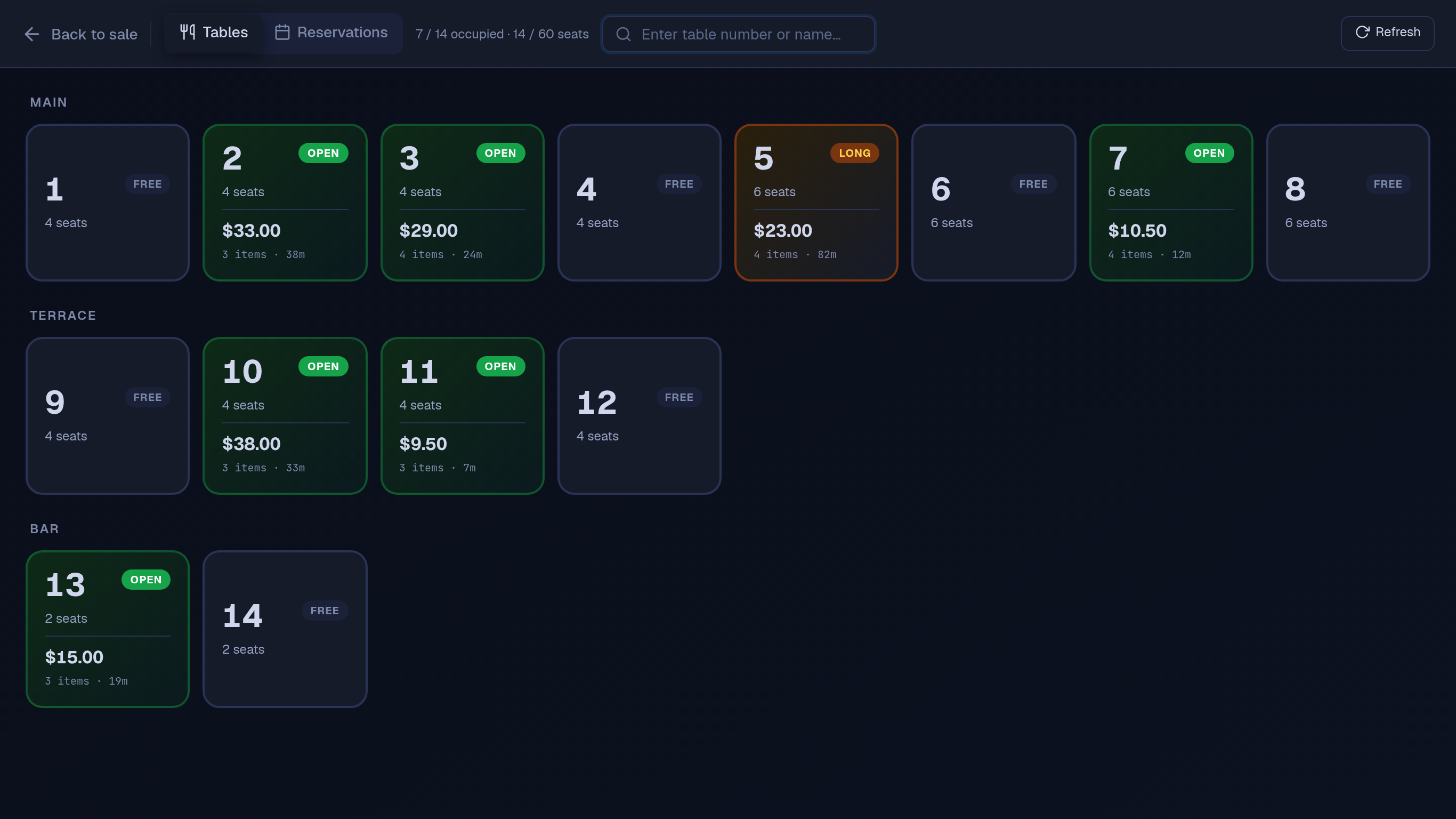
Table POS floor view: 14 tables grouped into Main, Terrace and Bar, 7 of them open with their tab totals, item counts and minutes open, one marked Long after 82 minutes
(opens the full-size screenshot)
Table POS floor view: 14 tables grouped into Main, Terrace and Bar, 7 of them open with their tab totals, item counts and minutes open, one marked Long after 82 minutes
The till's floor view: each open table's total, items and time open, grouped by area.
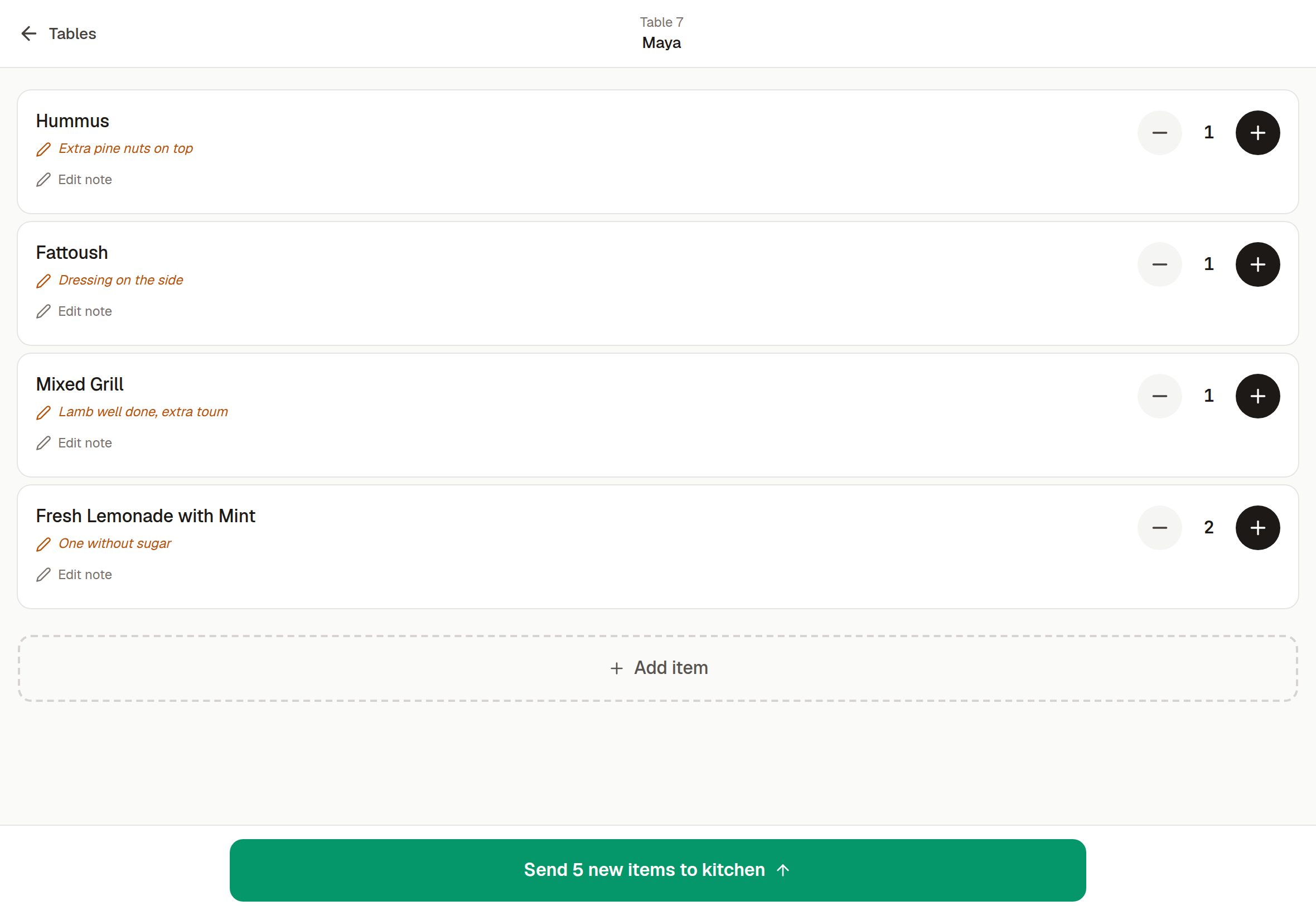
Table waiter tablet: waiter Maya's order for table 7 — Hummus, Fattoush, Mixed Grill and two Fresh Lemonades with Mint — each line with a kitchen note, and a 'Send 5 new items to kitchen' button
(opens the full-size screenshot)
Table waiter tablet: waiter Maya's order for table 7 — Hummus, Fattoush, Mixed Grill and two Fresh Lemonades with Mint — each line with a kitchen note, and a 'Send 5 new items to kitchen' button
Waiter tablet: a note per dish, sent to the kitchen printer through the till. No prices on the tablet.
10 features in this areaShow details

Table mode

Setting

Adds a Tables button to the till. The owner defines tables (number, name, seats, area) and each table keeps its own open tab, so the cashier can switch between tables without losing an order. When two devices ring on the same table, each one's changes are added to the other's rather than replacing them, and a payment closes only the items it charged: anything added on another device meanwhile stays on the table, and the till says so.

Till · Setting (off by default)

Floor view

Setting

Tables show as a grid grouped by area, each with free or occupied, the tab total, minutes open and item count. The till asks for the number of guests when a table is opened, and the view refreshes every 25 seconds to pick up other devices' changes.

Till · With Table mode

Move a tab

Setting

An open tab can be moved from one table to another from the floor view.

Till · With Table mode

Merge tables

Setting

From the floor view, another open table can be merged into the current one: its items, guests and customer move across, its table closes, and items it had already sent to the kitchen are not printed again.

Till · With Table mode

Guest check (pre-bill)

Setting

Prints the table's bill marked as not paid, without closing the tab. The table is then settled on the normal payment screen, which can split the payment across methods.

Till · With Table mode

Reservations

Setting

Staff enter bookings with name, phone, party size, time, length (default 90 minutes), preferred table and notes, tracked as pending, seated, no-show, cancelled or completed. The floor view badges tables booked in the next 24 hours and can seat a booking directly.

Till, Phone app · On by default with Table mode

Waiter tablet

Add-on $5/mo each

Waiters open tablelb.com/tablet/<shop> in any tablet or phone browser, enter the shop PIN, then tap their name. They see the floor, open a table and add items with add-ons and a note per line. The tablet shows no prices and has no payment buttons.

Waiter tablet · Add-on: $5/month or $50/year per tablet

Send to kitchen from the tablet

Add-on

'Send to kitchen' saves the table's order, and the Windows till with the kitchen printer picks it up and prints the ticket automatically, checking every 20 seconds while the till is in use.

Waiter tablet, Till · Needs a signed-in Windows till with a printer

Tablet on a weak connection

Add-on

Without a connection a waiter can still open a table and take the order. Orders are kept on the tablet and re-sent every 20 seconds or when the connection returns, added to what was rung on the same table meanwhile, with a red badge counting tables with unsent changes.

Waiter tablet · With the waiter tablet

Chalet QR self-ordering

Add-on · ask for a price

A resort prints a QR code per chalet. A guest scans it, orders from the menu page with a name and phone, and the order joins that chalet's open tab and prints at the kitchen stations. The bill is settled later at the till.

Web, Till · Add-on: Chalets (switched on by Table per shop)

13 / 19 · 3 features

Delivery and drivers

#

An optional delivery flow on the till with driver pay and an end-of-day cash-up.

3 features in this areaShow details

Delivery orders at the till

Setting

The cashier picks a customer (the saved address and phone fill in), sets a flat delivery fee (a default from Settings, editable per order) and chooses a driver. The sale is recorded as a delivery order.

Till · Setting: Delivery mode (off by default)

Drivers and driver pay

Setting

Each driver has a name, phone and active status. Pay is optional: a flat amount per delivery, a percentage of the delivery fee, or both.

Till · With Delivery mode

Delivery board and driver cash-up

Setting

Deliveries not yet cashed are listed first. Each can be assigned a driver and marked cashed, or all of one driver's deliveries cashed at once. An end-of-day tally per driver shows the amount collected, the driver's cut and what the driver owes.

Till · With Delivery mode

14 / 19 · 11 features

Customer QR menu

#

A phone menu at tablelb.com/menu/<shop> that reads the till's catalogue, in three languages and two currencies.

QR menuOpen the demo menu

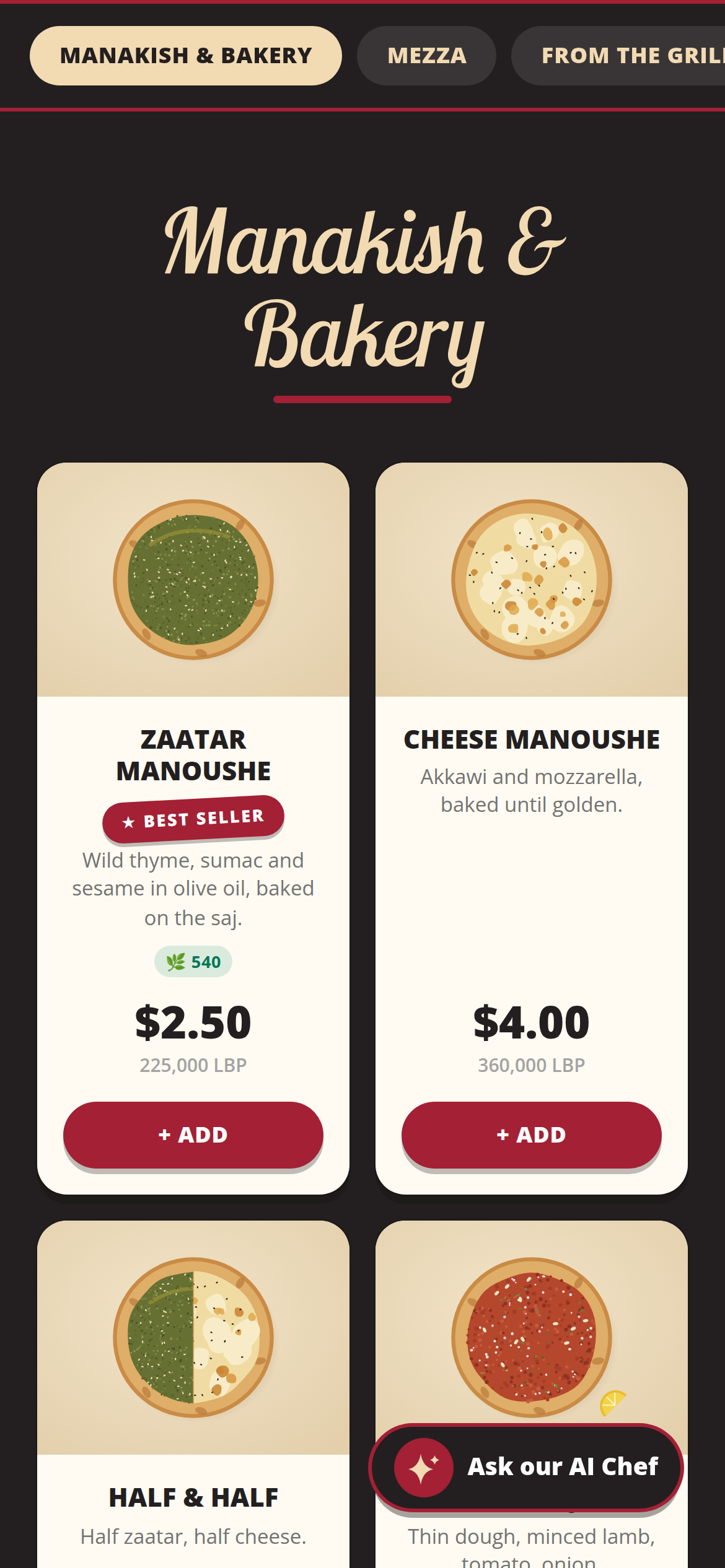
Table customer QR menu on a phone, in English: the Manakish & Bakery section with drawn dish pictures, a best-seller badge, a calorie count and prices in US dollars and Lebanese lira
(opens the full-size screenshot)
Table customer QR menu on a phone, in English: the Manakish & Bakery section with drawn dish pictures, a best-seller badge, a calorie count and prices in US dollars and Lebanese lira
Customer QR menu in English, each dish priced in dollars and lira.
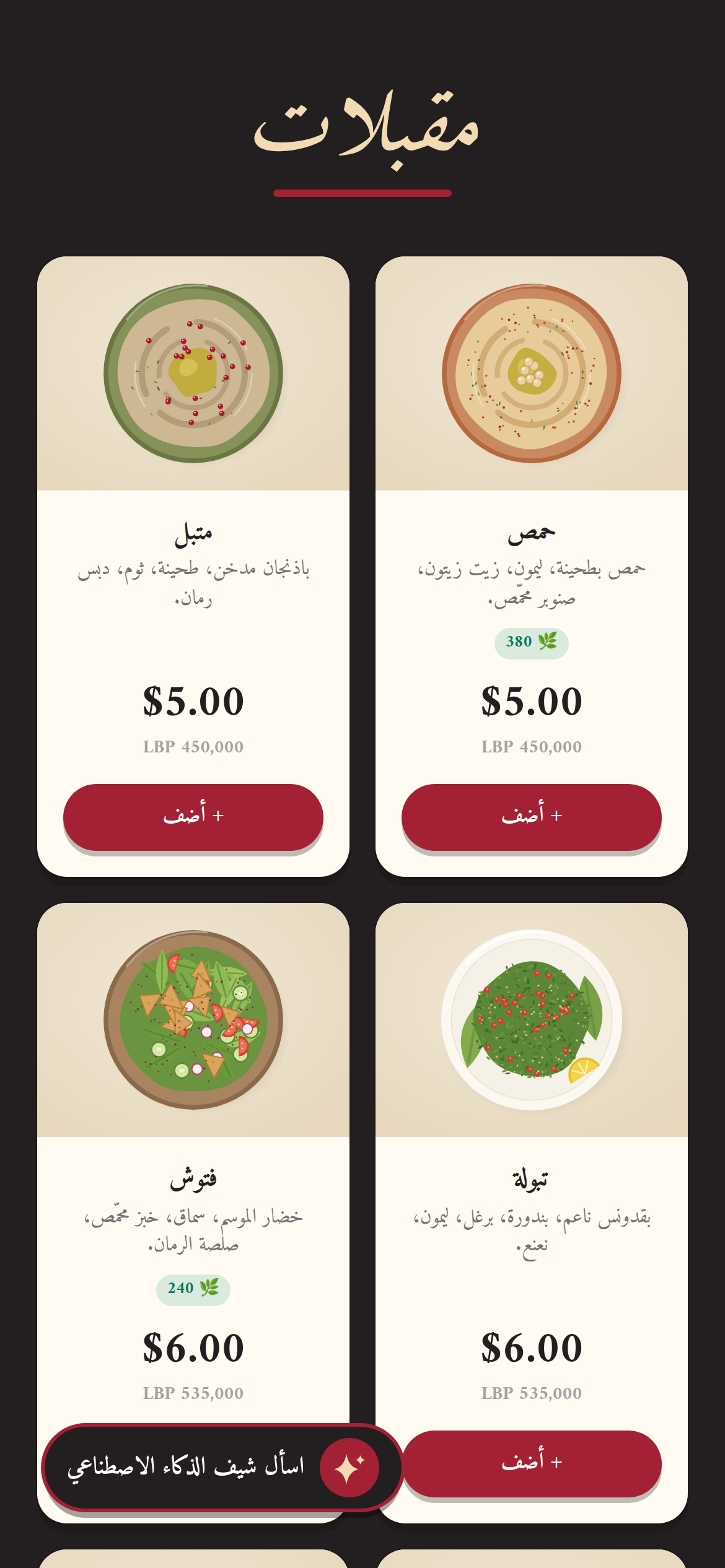
The same Table QR menu in Arabic, laid out right to left: the Mezza section with drawn dish pictures, calorie counts and prices in US dollars and Lebanese lira
(opens the full-size screenshot)
The same Table QR menu in Arabic, laid out right to left: the Mezza section with drawn dish pictures, calorie counts and prices in US dollars and Lebanese lira
The same menu in Arabic, right to left.
11 features in this areaShow details

Same catalogue as the till

Add-on $25/yr

The menu reads the products and categories the till sells, with prices in dollars and lira at the shop's rate. An open menu checks for changes every 15 seconds, so a price changed at the till reaches customers without a second list to update.

Web · Add-on: Customer QR menu, $25/year

English, Arabic and French

Add-on

Customers switch between English, Arabic (right to left) and French. Names and descriptions the owner has not translated are machine-translated into Arabic or French.

Web · With the QR menu

Item details and customisation

Add-on

Photos (tap to view full screen, with the item's extra photos), descriptions, add-ons with quantities, ingredients the customer can remove, a note per line, calories and a best-seller badge. Items the owner hides cannot be viewed or ordered.

Web · With the QR menu

Delivery or pickup ordering

Add-on

Customers choose delivery or pickup. For delivery they pick a zone, matched from the typed address or a shared location, and its flat fee is added. Percentage coupon codes are checked on the server.

Web · With the QR menu

How customers pay

Add-on

Every order is saved in Table. For Whish, OMT or Neo the customer sees the amount, the shop's receiving number and a reference for a manual transfer. Cash on delivery or pickup also opens a pre-written WhatsApp message, with the order's reference, from the customer to the shop.

Web · The owner picks which methods show

Menu orders on the till and phone

Add-on

QR-menu orders appear under Management → QR menu orders on the till, with a count beside the Void button, and in the owner phone app, where staff accept or reject them, move them through preparing, out for delivery and delivered (or picked up), and mark them paid. They stay out of the till's cash drawer and count in sales reports once marked paid.

Till, Phone app · With the QR menu

Table-tent QR and poster

Add-on

A second QR code opens the menu read-only, with no cart, for guests at tables. The owner phone app generates both QR codes, and a printable A4 QR poster is available.

Web, Phone app · With the QR menu

AI menu chat

Add-on

An 'Ask our AI Chef' chat recommends two or three available items with their prices and replies in the customer's language.

Web · With the QR menu

Rating after an order

Add-on

After ordering, the customer can rate 1 to 5 with a comment. A 4 or 5 star rating shows a link to the shop's Google review page if the shop has one on file.

Web · With the QR menu

Menu design

Add-on

The owner sets the menu's colours and header text from till Settings → Menu Design or from the owner phone app.

Till, Phone app · With the QR menu

Ordering settings

Add-on

Delivery zones and their fees, opening hours (up to three shifts a day, or always open), preparation and pickup times, the menu's languages and the Google review link, set from till Settings → QR menu or from the owner phone app.

Till, Phone app · With the QR menu

15 / 19 · 6 features

Online store

#

A web shop at tablelb.com/store/<shop> built from the till's products and stock.

Online store

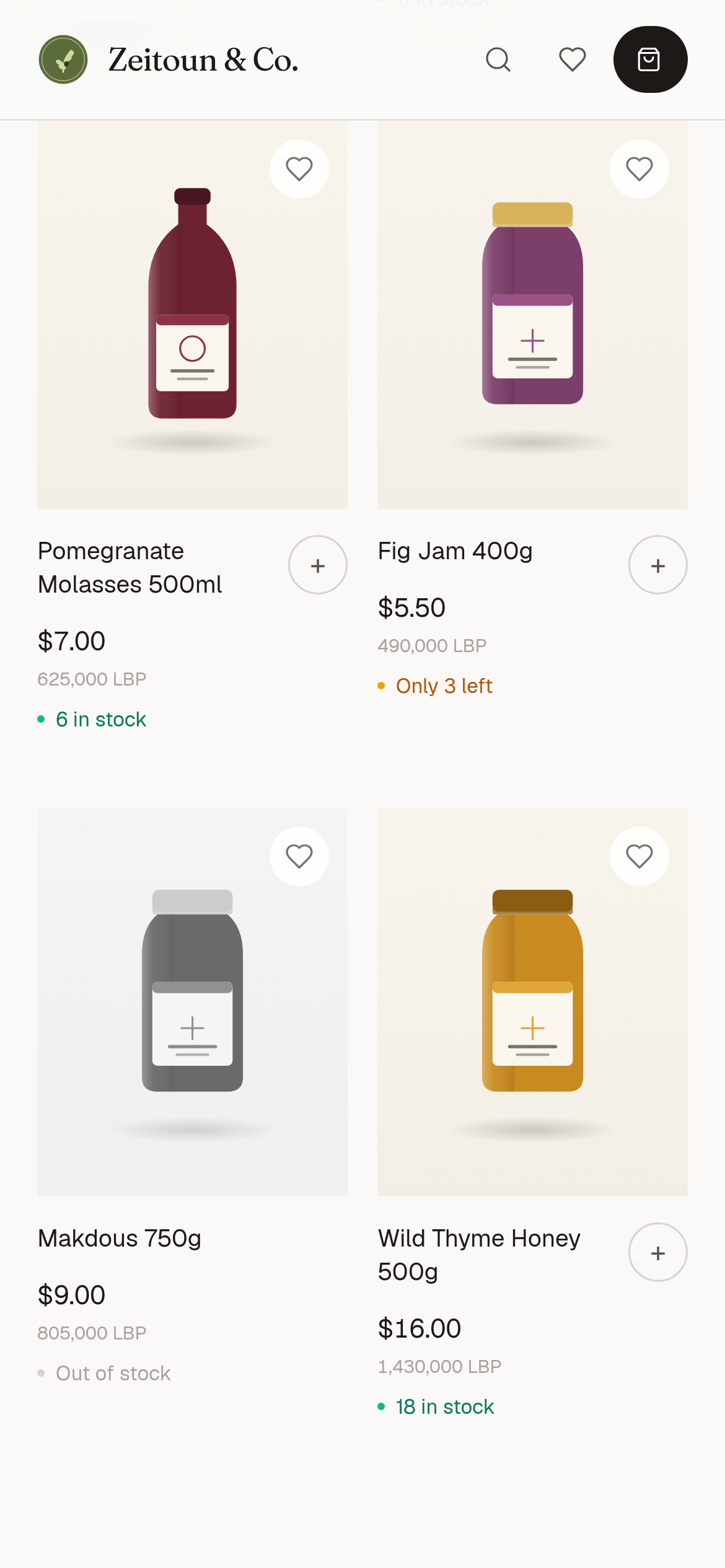
Table online store on a phone for the Zeitoun & Co. demo pantry shop: four products with drawn pictures, each priced in US dollars and Lebanese lira, with stock shown as 6 in stock, Only 3 left, Out of stock and 18 in stock
(opens the full-size screenshot)
Table online store on a phone for the Zeitoun & Co. demo pantry shop: four products with drawn pictures, each priced in US dollars and Lebanese lira, with stock shown as 6 in stock, Only 3 left, Out of stock and 18 in stock
Online store built from the till's products and stock.
6 features in this areaShow details

Storefront from the till's catalogue

Add-on $5/mo

Products with a main photo and up to 8 more on the product page, USD and LBP prices and in-stock or out-of-stock status, with exact stock counts optional. English, Arabic or French, with the shop's logo, accent colour, tagline, announcement bar and contact links. The shop's phone and address come from My Company and show at the top of the store: tap to call, or open the address in Google Maps. A green WhatsApp button in the bottom corner opens a chat with the shop (the store's WhatsApp number, or the My Company phone). An optional setting adds a "Send the order on WhatsApp" button after checkout: it opens a chat with the shop with the order typed in (reference, customer, phone, address, items, delivery fee and total), and the customer sends it.

Web · Add-on: Online store, $5/month or $50/year

Always in step with the till

Add-on

A product edited at the till shows on new page loads straight away and open pages refresh every 60 seconds. Checkout re-checks price and stock on the server before accepting an order.

Web · With the online store

Checkout

Add-on

Pickup or delivery, with a flat delivery fee, an optional minimum order and an optional free-delivery threshold. Cash on pickup or delivery, or Whish, OMT or Neo transfer if the shop turns them on. Sale prices from the till's promotions apply.

Web · With the online store

Stock held on order

Add-on

Placing an order deducts tracked stock straight away; rejecting the order puts it back.

Everywhere · With the online store

Order queue on the till and phone

Add-on

Store orders appear under Management → Online store and in the owner phone app, where staff accept or reject them, move them through preparing, out for delivery and delivered, and mark them paid.

Till, Phone app · With the online store

Pause switch and reporting

Add-on

The store takes orders at any hour unless the owner pauses it. Store sales count in revenue reports but stay out of the cash drawer.

Everywhere · With the online store

16 / 19 · 7 features

Owner phone app

#

A home-screen app at tablelb.com/m/<shop> for running the business from a phone. Included with the licence; it does not take sales.

7 features in this areaShow details

Install and languages

Included

The owner scans the QR code in till Settings → Mobile app, then adds the app with Safari's Add to Home Screen on iPhone or Chrome's Install app on Android. English or Arabic.

Phone app · Included with the POS licence

Sign-in

Included

Only active level-9 administrators can open it. After one sign-in with a PIN, the phone can use Face ID or fingerprint through a passkey.

Phone app · Always on

Dashboard and cash

Included

Today's sales, the expected drawer amount, surplus, the top seller and the last five sales. The Cash tab shows the current shift and can record a pay-in or pay-out and close the shift.

Phone app · Always on

Stock and products

Included

Receive stock, log waste, adjust stock, receive in bulk, and add or edit products and categories, scanning barcodes with the phone camera.

Phone app · Always on

49 reports and the back office

Included

Sales, profit, staff, cash, stock and storehouse reports, plus suppliers, customers, staff, reservations, expenses, payables, receivables, warranties, sales history and quotations.

Phone app · Always on

Notifications

Included

A bell lists new online-store and QR-menu orders, voids, refunds, deleted sales, low stock, shift open and close, customer credit alerts and birthdays. When allowed, the same events arrive as push notifications. Each type can be turned off on the till (Settings → Mobile app) or in the phone app (Settings → Notifications); one that is off is not sent or listed.

Phone app · Push needs the owner's permission on the phone

Menu and store controls

Add-on

Get the QR codes, change the menu design, set payment methods and numbers, manage coupons, and handle QR-menu and store orders from the phone.

Phone app · With the QR menu or online store

Known limits in this area:Devices and languages (7)

17 / 19 · 6 features

Industry modules

#

Optional modules for specific trades. Each stays hidden until switched on and keeps its data when switched off.

6 features in this areaShow details

Warranties and serial numbers

Setting

Products carry a warranty length in months and the cashier enters a serial number on the sale line. The Warranties screen finds a sale from the last 5 years by serial, customer or product and shows whether it is still covered.

Till · Setting (off by default)

Phone shop (Alfa and Touch prepaid)

Setting

Tracks the shop's Alfa and Touch lines and balances, applies each operator's transfer and SMS fees and reserve rules, and records credit transfers and recharge-card sales. It is a ledger; it does not connect to the operators.

Till · Setting (off by default)

Sold by area (tiles)

Setting

Stock and prices stay per square metre while the stock screen, cart and receipt also show the number of boxes, from a metres-per-box figure on each product.

Till · Setting (off by default) plus a per-product tick

Farm supply (consignment)

Setting

Each farmer drop-off is a lot whose code prints on its price tags, so a scan at the till credits that farmer. The shop owes only for what sold at the intake price; payouts are recorded in USD and LBP and the weekly Farmer settlement report shows sold, owed, paid and balance.

Till · Setting (off by default)

Car rental

Setting

Vehicles with photos, plate, mileage, insurance and registration dates, daily rates and multi-day bundles; contracts with pickup and return inspections, deposits, extras and closing charges; a service log per vehicle; and a Car rental performance report.

Till, Phone app · Setting (off by default)

Session packages

Add-on · ask for a price

Prepaid bundles of sessions (for example 15 training sessions) that a customer draws down; booked, done and no-show sessions use a slot and cancelled ones free it.

Till · Add-on (switched on by Table per shop)

18 / 19 · 3 features

Help assistant and support

#

Help inside the app, in Lebanese Arabic, Arabizi or English, and a direct line to Table.

3 features in this areaShow details

Built-in help assistant (Sanad)

Included

Staff and owners ask how to do something by typing or by voice, in Lebanese Arabic, Arabizi or English, and can hear the answer read aloud. It explains which buttons to tap one step at a time; it does not change anything itself.

Everywhere · Always on (needs internet)

Which AI it uses

Included

Anthropic's Claude writes the assistant's answers, the QR-menu chat and menu translations. OpenAI Whisper turns spoken questions into text, and OpenAI text-to-speech reads answers aloud.

Everywhere · Always on

Support from inside the app

Included

From the assistant, one tap sends the conversation to Table's support. From the owner phone app, owners can report a bug or suggest a feature with photos or video and follow each ticket's status.

Till, Phone app · Always on

Known limits in this area:Devices and languages (7)

19 / 19 · 7 features

Setup, devices and licence

#

How a shop gets running, which devices exist, and what the licence covers.

7 features in this areaShow details

Self-serve trial

Included

At tablelb.com/start, or from the first screen of the Windows app, the owner enters a shop name and a Lebanese mobile number. The shop is created on the spot with a 14-day trial and no card; each mobile number can have one shop.

Web · Always on

Windows app and pairing code

Included

The till is a Windows app from tablelb.com/download. On first launch it is paired to a shop with a 6-character pairing code, valid for 24 hours. A shop that signs up at tablelb.com/start sees its code on the signup screen; on a Windows computer, clicking Download (or Copy code) there copies it, and when the app, not yet paired, opens on that computer, or is brought back to the front while its first pairing screen is still untouched, it picks the code up from the clipboard (if nothing else was copied in between), pairs, and shows which shop it paired with. Signing up from the app's first screen pairs it straight away. Otherwise the code is entered by hand; after 24 hours Table sends a new code on request. The standard build runs on 64-bit Windows 10 and 11; a Legacy build runs on 64-bit Windows 7, 8 and 8.1 and on 32-bit Windows 7 to 10.

Till · Always on

Automatic updates

Included

The till's screens load from tablelb.com, so most changes arrive without reinstalling. The desktop app checks for a new version a minute after it starts and every 4 hours, downloads it in the background and installs it on restart. The app can start with Windows and has a button to shut the computer down.

Till · Always on

Find my shop

Included

At tablelb.com/login, a mobile number and PIN look up the shop's till address.

Web · Always on

Price checker

Add-on $5/mo each

A customer scans a barcode and sees the product photo, name, description and price in USD and LBP; the screen returns to idle after 10 seconds. Read-only, no PIN, prices refresh every 20 seconds. Runs as a Windows kiosk app or in a paired tablet browser.

Web · Add-on: $5/month or $50/year each

Licence and renewal codes

Included

The POS licence is $10 a month or $100 a year. Time is prepaid and nothing is charged automatically. A renewal code from Table, entered on the till, extends the licence; Table switches paid add-ons on per shop.

Till · Always on

What happens at expiry

Included

The licence runs to the end of its last day, Beirut time. After that the till shows a suspended screen with a field for a renewal code, the owner phone app is blocked, the QR menu shows 'Menu unavailable' and the online store closes. Expiry deletes none of the shop's data, and the till unblocks by itself once time is added.

Everywhere · Always on

Reports

57 reports out of the box

#

61 with every module on: 4 appear only once their module is switched on in Settings, and are tagged below. The owner phone app has 49. Each report has date presets and a custom range, prints as an A4 page, and downloads as a CSV file that opens in Excel.

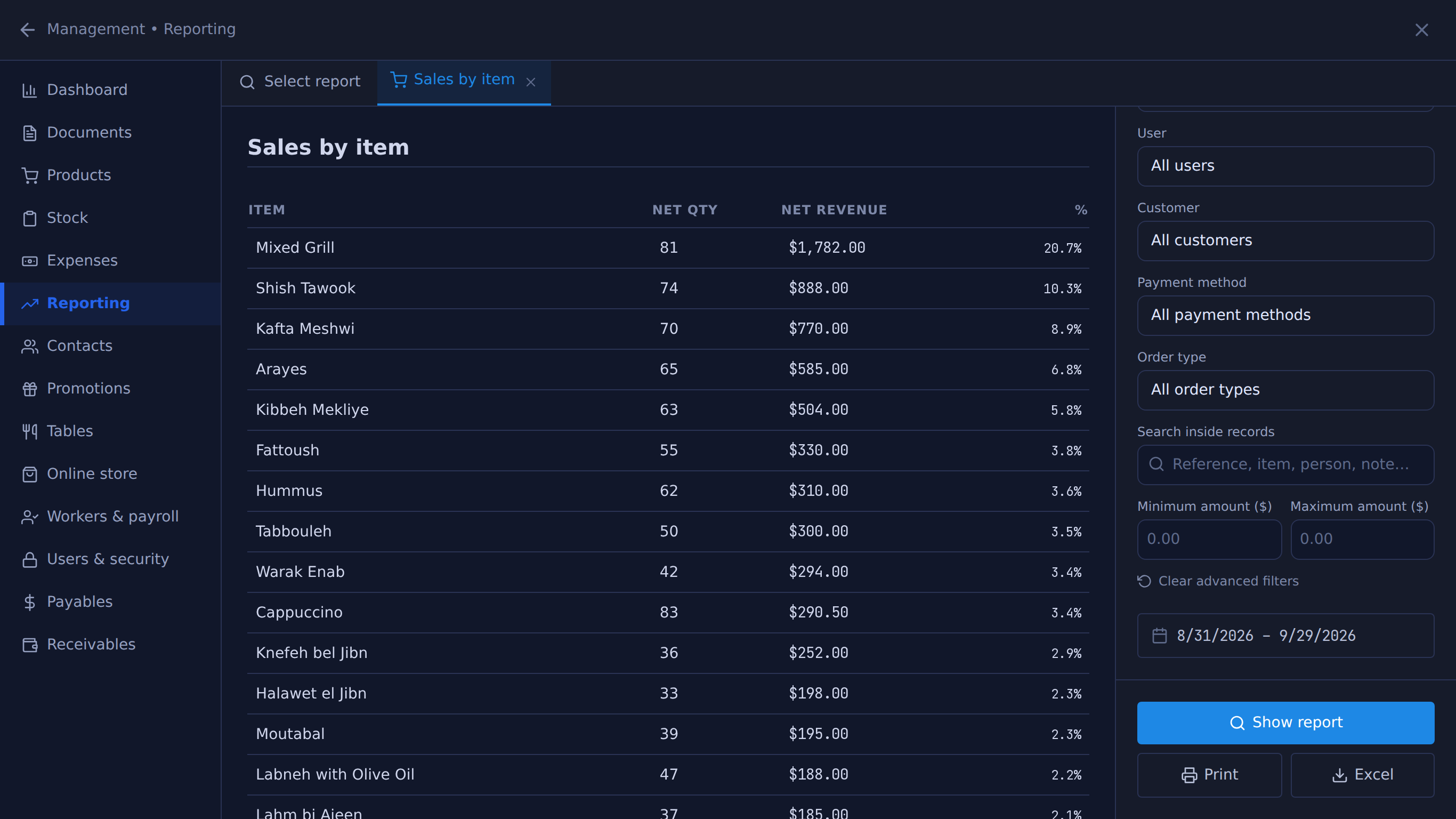
Sales by item report for the last 30 days listing net quantity, revenue and share per dish, led by Mixed Grill
(opens the full-size screenshot)
Sales by item report for the last 30 days listing net quantity, revenue and share per dish, led by Mixed Grill
Sales by item, with filters by user, customer, payment method and order type.
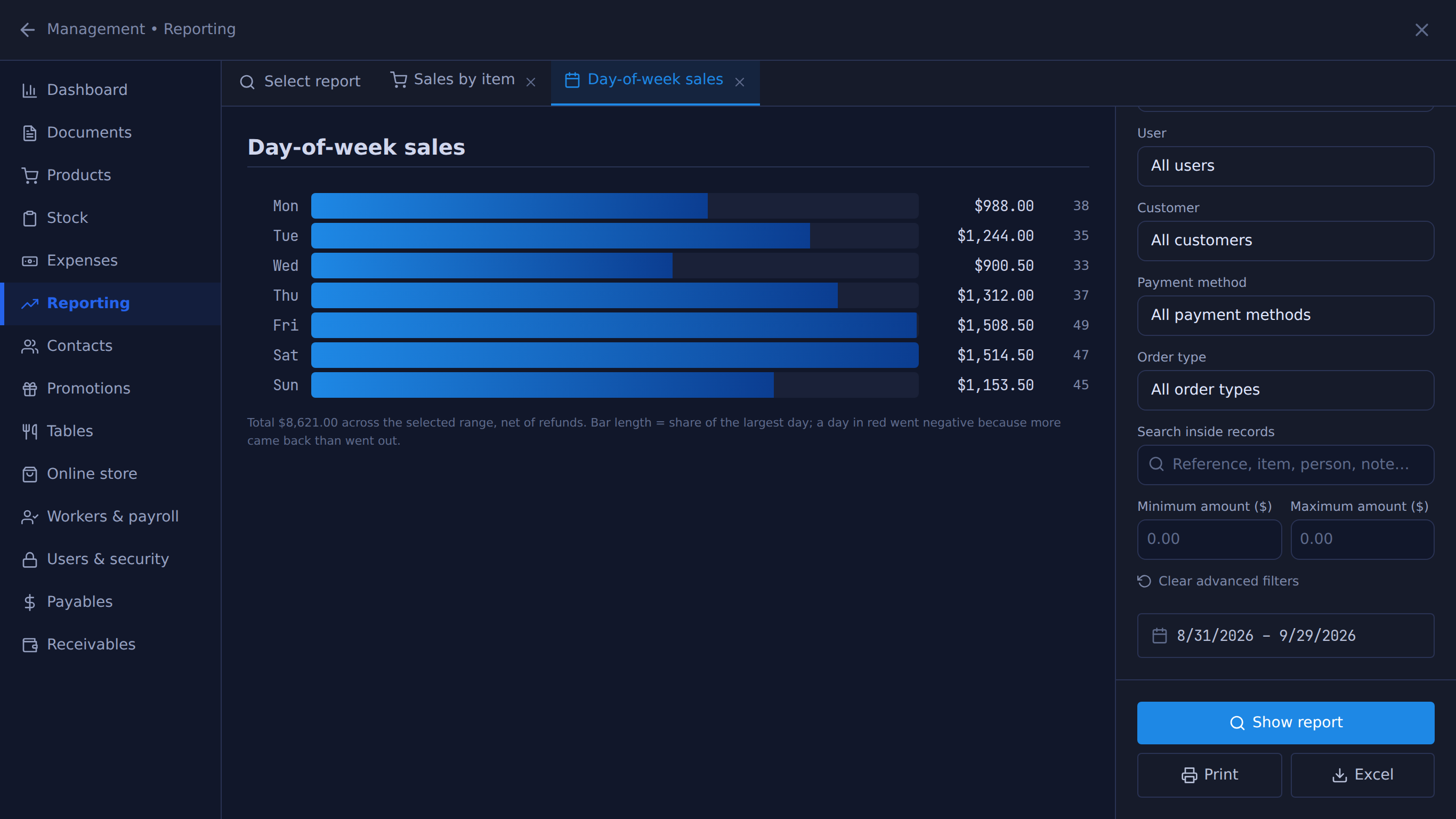
Day-of-week sales for the last 30 days as horizontal bars, Saturday highest
(opens the full-size screenshot)
Day-of-week sales for the last 30 days as horizontal bars, Saturday highest
Day-of-week sales, net of refunds.

Sales26

  • Flexible analysis
  • Sales overview
  • Sales by item
  • Sales by category
  • Sales by payment method
  • Daily sales
  • Hourly sales
  • Discounts granted
  • Voided items
  • Refunds
  • Returns analysis
  • Tax collected
  • Day-end (Z) report
  • Top sellers
  • Dead stock
  • Top customers
  • Day-of-week sales
  • Period comparison
  • Sales by employee
  • Order type split
  • Add-on / modifier sales
  • Open checks
  • Coupon performance
  • Bought together
  • Sales forecast
  • Car rental performance with Car rental

Profit10

  • Net profit
  • Profit & margin
  • Expenses
  • Labor cost %
  • Menu engineering
  • Payables (suppliers)
  • Farmer settlement with Farm supply
  • Receivables aging
  • Store-credit liability
  • Loyalty liability

Staff5

  • Payroll
  • Attendance / timesheet
  • Exception (loss prevention)
  • Activity log
  • Notifications

Cash3

  • Cash sessions
  • Currency exchanges
  • X-report (mid-shift)

Stock1

  • Stock movements

Storehouse10

Integrity6

  • Unsynced sales (this device)
  • Payments vs sales
  • Cash variance trend
  • Stock ledger check
  • Price integrity
  • Data health

Good to know · 50 limits

What Table doesn't do today

#

Better you read it here before you buy than find out after. If one of these is a deal-breaker for your shop, tell us: it shapes what gets built next.

Devices and languages (7)

  • The cashier till runs only in the Windows desktop app. There is no Mac, Linux, iPad or Android till, and opening the till in a web browser shows a download page.
  • The till and the owner phone app are in English and Arabic only. French is available on the customer QR menu and the online store. The receipt language follows the cashier's screen language.
  • The waiter tablet is in English only and shows items by their English names.
  • The Legacy build (Windows 7, 8, 8.1 and 32-bit) has no pole-display support, cannot place the customer display on a second monitor automatically, and cannot start with Windows.
  • The owner phone app cannot take sales or print, and it needs a connection to open.
  • A customer display opened on a different computer or tablet is not live: it refreshes through the server every 30 seconds. It has to be paired once with the shop PIN; until it is, it shows the cart without the customer's name, points or the thank-you screen, and once a shop has paired a screen, unpaired screens show nothing.
  • The help assistant needs internet, is limited to 40 messages per 5 minutes per shop, and only explains: it cannot carry out actions in the app.

Offline (4)

  • Without internet, a till works its tables on its own copy: other tills and waiter tablets see its changes only when the connection returns, and waiter-tablet orders do not print. When the changes sync, items rung on the same table on another device are kept; a change to a table that another device closed or moved meanwhile is not applied, and is shown to the cashier and kept under the sync button until marked handled. The sales history shows only the sales the till last loaded and its own unsynced sales. Sales and parked table rounds still print their receipt and kitchen tickets and open the cash drawer, using the printer settings the till saved while online.
  • The final Z report, other tills' figures, the delivery check before closing, saving changes in Management and Settings, the reports, the delivery board (a delivery rung offline reaches it when its sale syncs), reservations and QR-menu orders need an internet connection. Offline, the cash drawer, the X report and closing a shift use the till's own figures (the last totals it loaded plus what it did since), and the server writes the final Z report when the close syncs, after the sales rung before it. A refund made offline is checked against its sale only when it syncs; one the server refuses is shown to the cashier to redo. Offline, a manager's approval of settings, users, documents or payroll needs the connection, a sale rung offline that syncs after its stock ran out is recorded below zero, and one left on a customer's account is recorded even if the account went over its limit or was blocked by then (the owner is notified of both). Offline, a sale left on a customer's account can be refunded only with no cash back, and the account's balance and documents cannot be shown: a plain payment is still taken and is applied to the oldest debts when it syncs.
  • Offline, the till blocks phone-shop products. In a split payment with an unpaid account part made offline, the paid part reaches the customer's account only after the credit sale has synced.
  • A till restarted without internet uses the products, codes, settings and taxes it saved the last time it was online: price, stock and exchange-rate changes made since reach it only when the connection returns.

Payments and checkout (8)

  • Table does not process payments. Card, Whish, OMT and Neo are recorded against the sale; the money moves through your own card terminal or wallet. The QR menu and online store have no online card payment: Whish, OMT and Neo are manual transfers that the owner confirms.
  • The till's sales history, sale documents and reprinted receipts, the Management dashboard, and the Sales overview, Net profit and X and Z reports show the lira of past sales at the rate stored with each sale, or at today's exchange rate for a sale with none on record, such as one from before the till stored rates or an online-store or QR-menu order. Other lira figures for past periods use today's rate, including the owner phone app's sales, refund and void lists, the Flexible analysis and car-rental totals, and purchases and waste. The phone app's sales breakdowns (by item, payment method, day, category and so on), and cost of goods and payroll in Net profit, use the period's average sale rate. Dollar sales figures are unaffected.
  • The Expenses tab and the Expenses and Net profit reports convert each expense's lira at the rate it was entered at when one is on record. An expense paid from outside the cash drawer or left on supplier credit may have no rate on record (every such expense entered before Table recorded one for them); it is then converted at today's rate, so its dollar value, and the dollar Net profit of its period, move with the rate.
  • Cart-level discounts do not stack: a manual discount, a promotion, a VIP discount, a loyalty reward and a coupon code share one cart discount, and promotions apply only when the cashier taps Apply.
  • There are no gift cards, no tip or service-charge field, and a bill cannot be split by guest, seat or item (only the payment can be split across methods).
  • Table does not connect to a fiscal printer or a government e-invoicing system; receipts can print the shop's VAT and registration numbers.
  • Coupons are a percentage off the whole order: there are no fixed-amount or per-item coupons and they do not apply to online-store orders. Offline, the till checks a coupon against the copy it saved while online and counts the use when the sale syncs, so per-customer limits and uses on other tills in the meantime are only checked then.
  • There are no instalment plans with scheduled due dates; a customer's balance can be paid down in any amounts.

Tables, kitchen and delivery (8)

  • There is no kitchen display screen; kitchen orders are printed tickets only.
  • Kitchen tickets are routed to stations by category only, not per product.
  • There is no drag-and-drop floor plan (tables show as a grid grouped by area), and tables can be merged on the till only, not on the waiter tablet.
  • Waiters do not have individual PINs on the tablet: they enter the shop PIN and pick their name.
  • Tablet and chalet orders print only while a signed-in Windows till with the printer is open. An idle till checks every 2 minutes after 3 minutes without use, and every 10 minutes after 20 minutes without use.
  • Customers cannot book a table online, and bookings are not confirmed by SMS or WhatsApp; staff enter every reservation.
  • There is no driver app and no live driver tracking, and customers do not see delivery status for till deliveries.
  • Parked sales stay on the till that parked them.

QR menu, online store and WhatsApp (6)

  • The table QR code opens a view-only menu: guests at a table cannot order from their phone to that table (chalets are the exception).
  • QR-menu orders are not printed automatically and are not counted in the till's cash drawer: staff move each one through accepted, preparing and delivered by hand, on the till or the owner phone app.
  • Automatic WhatsApp messages from Table's number (sale alerts, order alerts, daily summaries and the owner's WhatsApp assistant) are not offered as a dependable feature yet. They are sent as plain messages, which WhatsApp delivers only within 24 hours of the recipient's last message to Table's number.
  • Online-store orders are not printed and do not go through the till's cash drawer or sales history.
  • The QR menu has no customer accounts or login.
  • The QR menu charges each product's dollar price, even one priced in lira at the till, so a QR-menu total of low-priced lira items can differ from the till's by a few thousand lira.

Stock and products (9)

  • Variations have no barcode of their own, and size-by-colour option combinations share the parent product's stock count.
  • The till does not read weight from a scale connected by cable; weighed items are sold by scanning the scale's printed label or typing the quantity.
  • There are no purchase orders sent to suppliers before delivery; stock comes in through receipts.
  • Expiry is a date per receipt line only: there are no batch or lot numbers and no remaining quantity per batch. There is no dedicated pharmacy module (no prescriptions).
  • Serial numbers are captured on the sale line only; stock is not received or counted by serial number.
  • Storehouse locations share one catalogue and one price list; there is no per-location pricing.
  • Product import accepts CSV or XML, not .xlsx. The reports' 'Excel' button saves a CSV file; only the stock export writes .xlsx.
  • VIP levels are assigned by hand, not automatically by spend.
  • Payroll calculates wages owed but does not pay them; salary payments are recorded as expenses.

Staff, records and accounts (8)

  • Edits to a single product and changes to settings are not recorded with a user name; only bulk price changes have a history.
  • Opening the cash drawer outside a sale is checked by the till app only. The level checks on Management, Settings, Reports and Sales history apply to requests from the till's own screens; a request made directly with the shop's owner credential, such as the sign-in a till keeps, counts as the owner's. Data those screens share with the sale screen, such as products, customers, stock counts and tables, is not re-checked against the user's access level.
  • The Trash does not empty itself; archived items stay until someone purges them.
  • Nightly off-site backups cannot be downloaded or restored from inside the app; Table restores them on request.
  • While the licence is expired or the account is paused, the till and the owner phone app show a suspended screen, so the backup download and exports are not available; ask Table for a copy.
  • There is no multi-branch combined view: each branch is a separate Table shop with its own login, stock and reports.
  • Owners cannot switch paid add-ons on themselves; Table enables them per shop.
  • A shop cannot create a pairing code itself; once the code shown at signup has expired, new codes come from Table.

Nothing here a deal-breaker? Try it free for 14 days.

Getting started

From signup to first sale

#
  1. 1Sign up at tablelb.com/start with the shop name and a Lebanese mobile number. The shop is created with a 14-day trial and no card. Table can also set it up for you.
  2. 2Download the Windows app from tablelb.com/download: the standard build for 64-bit Windows 10 and 11, or the Legacy build for Windows 7, 8 and 8.1 or any 32-bit Windows. While that page lists no Legacy download, it links a WhatsApp message to ask Table for the installer.
  3. 3Open the app. If you clicked Download on the signup screen on the same computer, it picks up the 6-character pairing code shown there; otherwise enter the code. A shop created from the app's first screen instead is paired straight away. The code is valid for 24 hours; after that, or if Table set up the shop for you, Table sends a new code on request.
  4. 4Sign in with the default PIN; the till makes you set a new one before you continue.
  5. 5Set the exchange rate (automatic from lirarate.org, or manual), add products by hand or by CSV/XML import, add staff with their own PINs and access levels, and set up the receipt and kitchen printers.
  6. 6Optional: turn on Table mode or Delivery mode in Settings, install the owner phone app from the QR code in Settings → Mobile app, and open waiter tablets at tablelb.com/tablet/<shop>.

Where it runs

Devices

Cashier till
Windows desktop app. Standard build for 64-bit Windows 10 and 11; Legacy build for 64-bit Windows 7, 8 and 8.1 and 32-bit Windows. Updates itself. English or Arabic.
Owner phone app
Installable web app at tablelb.com/m/<shop> for iPhone (Safari) and Android (Chrome). English or Arabic. Level-9 admins only. Included with the licence.
Waiter tablet
Web page at tablelb.com/tablet/<shop> in any tablet or phone browser, nothing to install. English only; shows no prices.
Customer surfaces
QR menu at tablelb.com/menu/<shop> and online store at tablelb.com/store/<shop>, in any phone browser, in English, Arabic or French.
Price checker
Windows kiosk app, or a paired tablet browser.

Download for Windows

Pricing

One licence, add what you use

#

In USD. 14-day free trial, no card.

POS licence

$10/ month

or $100 a year

One Windows till with every feature on this page that is not marked as an add-on, the owner phone app, and support on WhatsApp.

  • Prepaid; nothing is charged automatically. No transaction fees: Table does not process payments.
  • Chalets and session packages are switched on by Table per shop; ask for a price.

14 days free · no credit card

Add-ons

Table switches them on for your shop when you need them.

  • Extra POS terminal

    A second or third till, each with its own cash drawer, shift and Z-report.

    $10 / month

    or $100 a year

  • Waiter tablet

    Order-taking on the floor. No prices, no payment buttons — just the menu and the tables.

    $5 / month

    or $50 a year, each

  • Price checker

    A spare tablet on the shop floor. Customer scans a barcode, sees the price in both currencies.

    $5 / month

    or $50 a year, each

  • Customer QR menu

    A menu customers open from a QR code or a link, in English, Arabic and French — with pickup and delivery ordering when you switch it on.

    $25 / year

  • Online store

    Your own web shop, connected to the till: product photos, stock counts from the till, cart and checkout. Orders land in a queue on the till and in the owner app.

    $5 / month

    or $50 a year

  • Mobile owner app

    Sales, stock and cash from your phone, wherever you are.

    Free

    included with every licence

  • Multi-branch

    Several shops under one owner — each branch runs as its own Table shop.

    Contact us

    priced per shop

Installed bundles

One-time prices, with installation, training and the first year of the licence. See the hardware

Software Only

$150one-time

  • Full POS software licence
  • Barcode menu
  • Installation + training
  • First year included
Ask about this bundle on WhatsApp
Recommended

Laptop Bundle

$400one-time

  • Lenovo laptop — i5, 8GB RAM
  • Cash drawer
  • Receipt printer
  • Barcode menu + POS software
  • Installation + training
  • First year included
Ask about this bundle on WhatsApp

Touch Screen Bundle

$550one-time

  • 15" POS touchscreen — i5, 8GB RAM
  • Cash drawer
  • Receipt printer
  • Barcode menu + POS software
  • Installation + training
  • First year included
Ask about this bundle on WhatsApp

Questions about your shop? Ask us directly.

WhatsApp +961 81 664 397 or email tableposlb@gmail.com. This page is also published as plain text for AI assistants: llms.txt.