STANDARD
Windows 10 & 11
The standard build for 64-bit Windows 10 and 11.
TABLE FOR WINDOWS
The point of sale that feels at home on your counter. Sales, stock and customers. Dollars and lira. All in Table.
No shop yet? Create one free
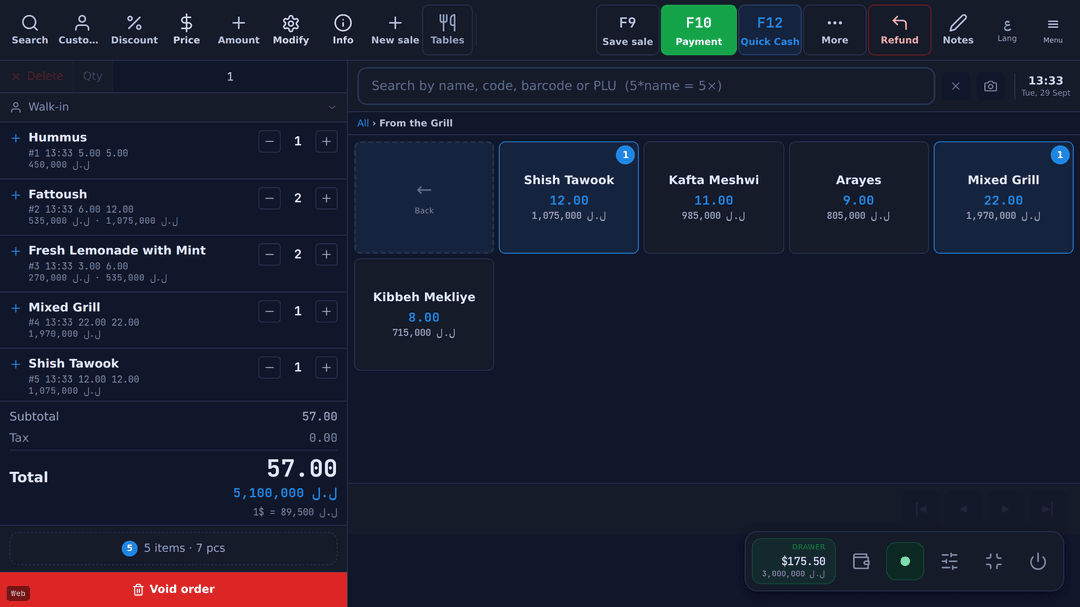
USD + LBP
Two currencies. One checkout.
OFFLINE SELLING
Keep selling. Sync when connected.
BUILT IN LEBANON
English & Arabic, throughout the POS.
01 / CHOOSE YOUR INSTALLER
Choose by your Windows version and system type. Already have Table? Open the shortcut on your desktop.
The standard build for 64-bit Windows 10 and 11.
For older computers running a 64-bit Windows system.
The Legacy build for 32-bit Windows 7, 8, 8.1 or 10.
Open Settings → System → About, or Control Panel → System on older Windows. Look for Windows edition and System type.
Legacy uses an older runtime for compatibility. Use the standard build on supported 64-bit computers. There is no native Mac or Linux installer.
Match the installer to the Windows edition and system type above.
Connect to download, pair your shop and sync. Offline selling is available after setup.
The 6-character code shown when you signed up (valid 24 hours). If you clicked Download on that screen, the app picks the code up when it opens on the same computer. No code, or it expired? Message Table on WhatsApp (+961 81 664 397) for a new one. Not signed up yet? Create your shop from the app’s first screen, which pairs it straight away.
02 / GET UP AND RUNNING
Choose your build above. Your browser will show the download progress. When it finishes, open the .exe file from Downloads.
Follow the installer, then open Table POS. If you clicked Download on the signup screen on this computer, the app picks up your pairing code and shows which shop it paired with. Otherwise enter the code when asked, or create your shop in the app.
Sign in with your PIN. Check your register, exchange rate and receipt printer settings before the first sale.
03 / A FEW USEFUL ANSWERS
Open your browser’s Downloads list, or the Downloads folder on your computer. These are large installer files; the time needed depends on your connection. You only need to click once.
The cashier POS runs in the Windows desktop app. This page is for downloading it. Your customer menu, online store and mobile owner app are separate experiences.
An already-paired installation remembers its shop. A new computer needs a pairing code: the 6-character code shown when you signed up works for 24 hours. After that, or if Table set up your shop, message Table on WhatsApp for a new one.
Make sure you started the download on tablelb.com and that the file is the Table POS installer you selected. The Windows 10 and 11 installer itself comes from GitHub, where Table keeps it, so your browser may show github.com or githubusercontent.com. If Windows flags or blocks it, stop and contact Table support. Do not disable antivirus or run an unknown file.
That can indicate a router or internet-provider connection problem. Try another connection and contact your provider if it persists. Do not clear POS data or reinstall to fix a network issue.
A LITTLE HELP GOES A LONG WAY
Choosing a version, finding a pairing code, connecting a printer. Talk to us and we’ll help you take the next step.
Talk to Table